

While this season has been moving along, we’ve been hard at work on FolioBlocks 1.5. This is one of our biggest updates yet, with a new Proofing Gallery workflow, expanded watermark tools, Lightbox improvements, new overlay and hover effects, social sharing updates, and more control across the editing experience.
Table of Contents
Proofing Gallery Block
FolioBlocks 1.5 introduces the new Proofing Gallery Block, available to Pro users on Business and Agency plans. The Proofing Gallery Block is designed for photographers and creative professionals who need a smooth workflow for client proofing. It is useful for everyone from editorial photographers, who need client approvals before images can be published or released, to wedding photographers, who need clients to select images for delivery, albums, or prints.
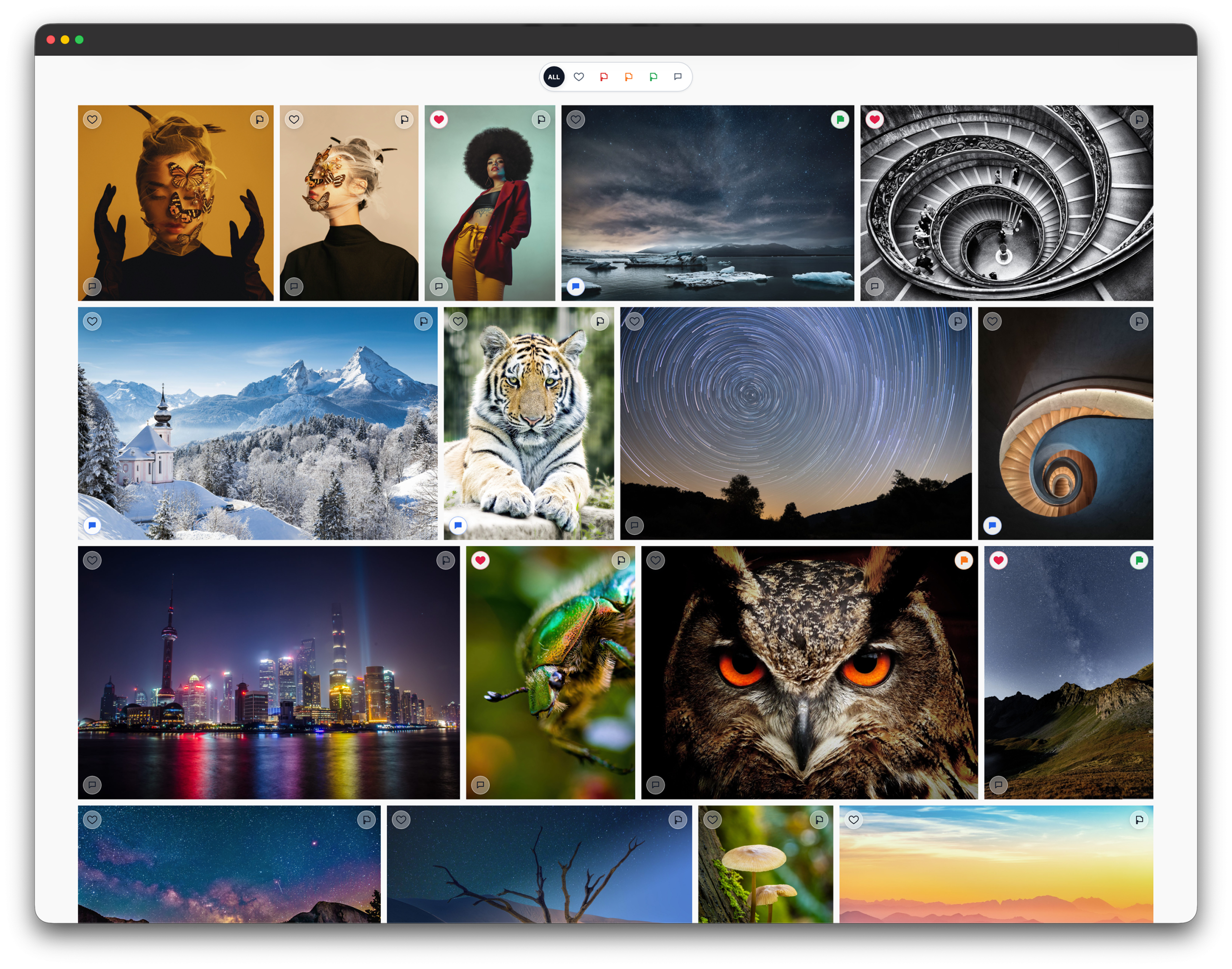
The Proofing Gallery Block is private by default. You begin by entering the client’s email address and setting a gallery password. From there, you can choose between three gallery layouts: Grid, Justified, or Masonry.
Clients have several ways to select images and provide feedback. They can heart images they love, add color flags to mark images with different statuses, and leave comments on individual images to request changes or provide notes.
A built-in filter bar lets clients view only hearted images, images with a selected flag color, or images with comments. Used together, these tools create a flexible proofing workflow. For example, in a large gallery, a client can make an initial pass by hearting every image they like. They can then filter the gallery by hearted images and begin adding flags or comments to mark which images are approved, need retouching, or require further review.
Clients can also save their progress and return later to continue the proofing session.
For site administrators, FolioBlocks includes smart features that make the Proofing Gallery Block easier to manage. Status badges in the Posts and Pages sections of the WordPress admin dashboard show when a client is actively working in a proofing gallery. This helps prevent administrators from entering the page and making changes while a client is proofing.

When a client completes a proofing session, the site administrator can receive an email notification. A full report of the client’s selections, flags, and comments is also available in the WordPress dashboard. This report can be exported as a PDF, making it easy to continue the production process and prepare the final images for the client.
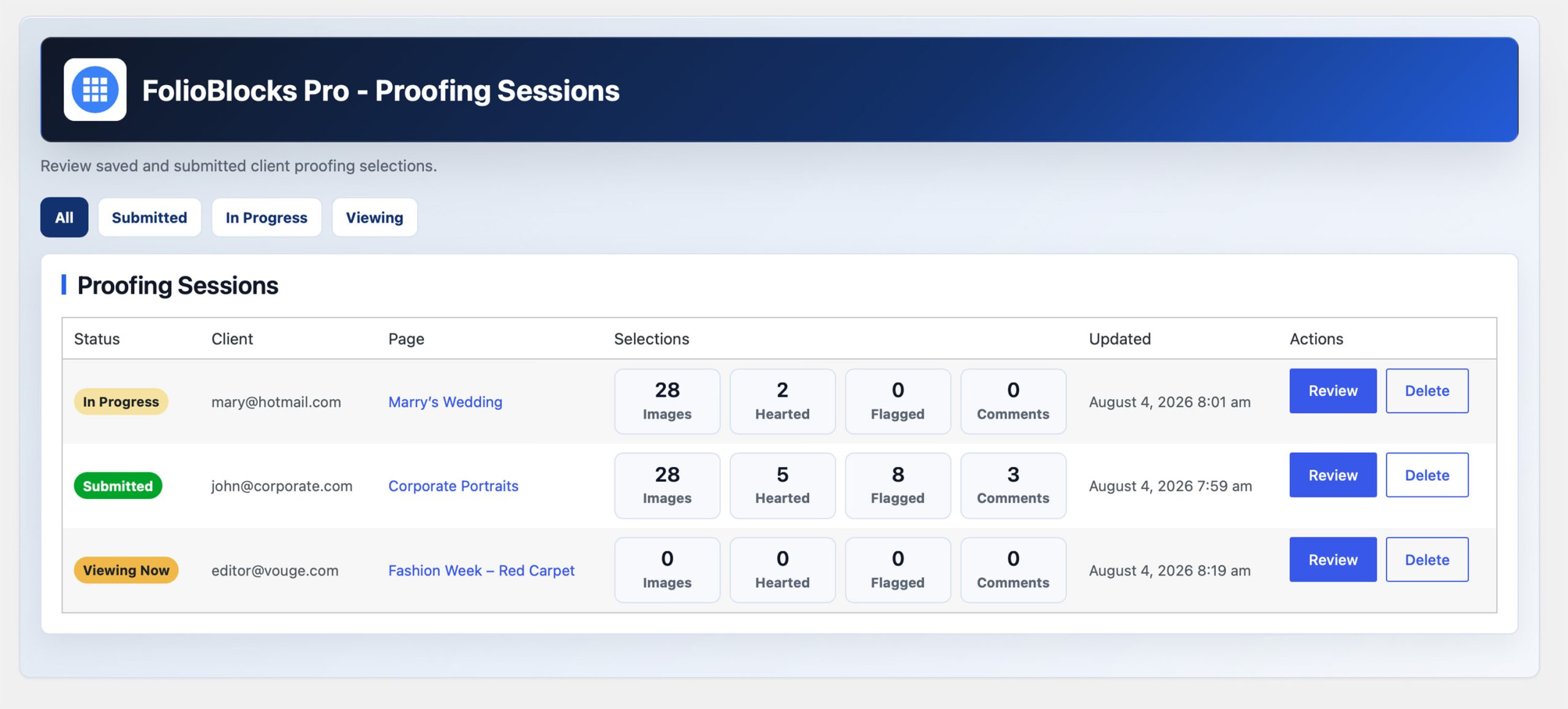
We are incredibly excited to finally release the Proofing Gallery Block in FolioBlocks 1.5. It is the only client proofing workflow we know of that has been built from the ground up for the WordPress block editor, which makes it feel natural, intuitive, and incredibly easy to use. This is just the beginning for proofing in FolioBlocks, and we are already exploring ways to make the workflow even more powerful in the future, including deeper connections between proofing reports and professional photo applications like Photo Mechanic, Lightroom, and Capture One.
Watermark Overlays
The second signature feature in FolioBlocks 1.5 is a new system for adding watermark overlays to gallery images and images displayed inside the Lightbox.
You begin by creating and saving one or more watermarks on the new Global Settings page in the FolioBlocks menu of your WordPress admin dashboard. From there, you can upload image files, such as transparent PNG logos, to use as watermarks. SVG files can also be used on sites where SVG uploads are enabled in WordPress. You can also control the watermark’s position, size, opacity, and whether it appears once or as a tiled pattern.
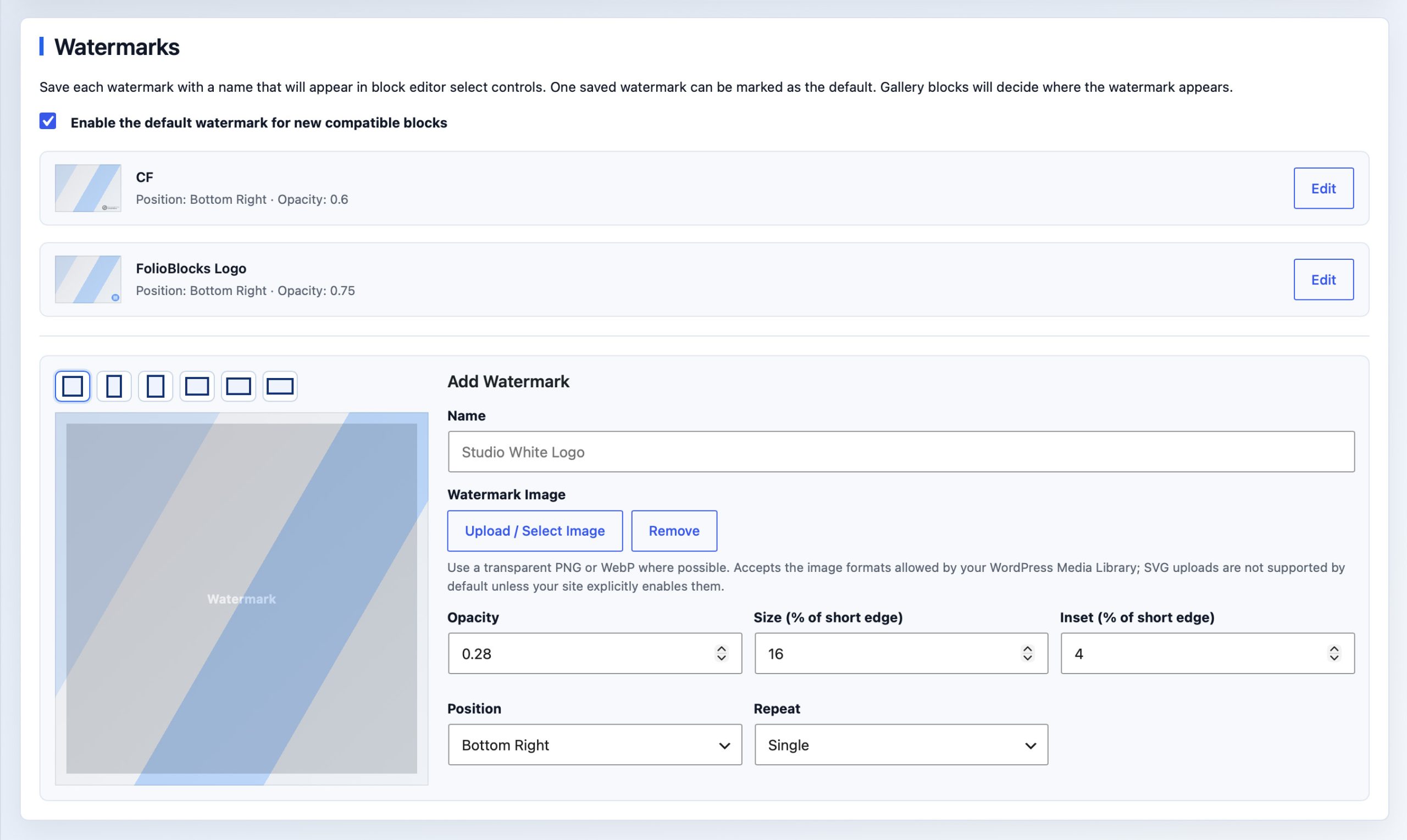
You can save multiple watermarks and choose one as the default. When a default watermark is set, it can be applied automatically whenever watermarking is enabled on a compatible gallery. This dynamic system is especially useful for larger sites with thousands of images. If you update your watermark to a new design, you only need to set the new version as the default, and galleries using the default watermark will automatically switch over to it. You can still override the default watermark on a per-gallery basis whenever needed.
It is important to note that FolioBlocks Watermark Overlays are exactly that: overlays. FolioBlocks does not create new image files or permanently imprint the watermark onto your originals. Your uploaded images remain unchanged, while the watermark is displayed dynamically on top of them in supported galleries and Lightbox views.

The above image has a watermark overlay added to it both on the page and in the Lightbox.
Improved Gallery Hover Settings
We have also put work into improving the hover and overlay options available for gallery blocks, individual image blocks, and video blocks in FolioBlocks 1.5.
New Gradient Overlay Style
FolioBlocks 1.5 adds a new set of hover effects for gallery images, individual image blocks, and video blocks, along with new Overlay Entrance controls for choosing how overlay content appears over your images and videos.
FolioBlocks 1.5 adds a new Gradient Overlay style. It works similarly to the Color Overlay, but instead of choosing a solid background color, you can create a background gradient. It uses the default WordPress gradient system, giving you a full-featured control where you can choose the gradient type, linear or radial, add multiple gradient stops, and adjust opacity.
Hover Effects:
- Zoom In
- Zoom Out
- Lift
- Tilt
- Pop
- Glare
- Pan
- Desaturate
Overlay Entrance Options:
- Slide Down
- Slide Up
- Slide Left
- Slide Right
New Overlay Typography Controls
FolioBlocks 1.5 also adds new typography controls for text-based overlays. By default, overlay text will try to inherit your theme’s default font, so it fits naturally with the rest of your site. When you want more control, the new Overlay Typography controls in the Styles panel let you choose a font family from your theme’s Global Styles and select an appearance such as Light, Regular, Medium, Bold, or Italic variations.
This feature is designed especially for block-based themes, where fonts are managed through theme.json and WordPress Global Styles.

The above image uses the Gradient Overlay along with a pop effect when you hover over it. The overlay picks up the theme’s Inter font and uses a light italic style.
Lightbox Counter & Zoom
FolioBlocks already includes a full-featured, pro-level Lightbox with options like Light and Dark mode, Fullscreen mode, Tap to Hide, and swipe gestures. But we are not stopping there. In FolioBlocks 1.5, we are adding two new Lightbox features.
The first is an optional Image Counter. When enabled, it appears in the top-left corner of the Lightbox and shows both the total number of images in the gallery and the image you are currently viewing.
The second is an optional Zoom feature. When enabled, it adds a Zoom button to the Lightbox. Visitors can also double-click the image to enter Zoom mode, where they can pan around the enlarged image by moving the cursor or using their trackpad.
Social Media Sharing
Many users have requested the ability to share gallery images to social media sites and so we are introducing a new Social Media sharing feature.
You being on the Global Settings page where you can select up to 5 Social Media services to share to. You can then select “Show Social Media” when setting your Lightbox content or Overlay content inside of Gallery and Image blocks.

New Video Embed Providers
In addition to the new hover features mentioned earlier in this article, the Video Gallery Block and Video Block now support more video providers.
Newly added providers include:
- Wistia
- Dailymotion
- VideoPress
- Loom
- Cloudflare Stream
Improvements in Modular Gallery
The Modular Gallery has also received a small but useful improvement. You can now nest an Image Row inside an Image Stack, opening up even more layout possibilities.
Disable Drag To Save
We have added a new setting to the FolioBlocks Page/Post Settings panel that lets you disable drag-to-save behavior. This helps prevent visitors from dragging an image out of the browser window and onto their desktop to save it.
When paired with Disable Right-Click and Watermark Overlays, this creates a much stronger protection layer for your images. It will not stop someone who is absolutely determined, but it does make saving your images much more difficult.
Editor & Workflow Polish
In FolioBlocks 1.4, we introduced per-image overrides for Gallery Click and Gallery Hover settings, allowing you to set different click and hover behavior for individual images inside a gallery.
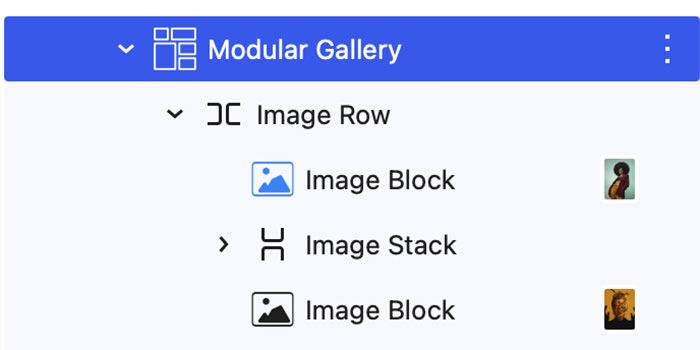
After using this feature in real workflows, we realized it could be difficult to keep track of which images had active overrides. In FolioBlocks 1.5, we have added a visual indicator to make that easier.
When an image has active overrides, its icon in List View now turns a light shade of blue. This helps it stand out and lets you see at a glance which images have custom override settings enabled.
Updated Tutorials
Alongside the release of FolioBlocks 1.5.0 we have also gone through and updated the following block tutorials:
- Carousel Gallery Block
- Filmstrip Gallery Block
- Grid Gallery Block
- Image Block
- Justified Gallery Block
- Masonry Gallery Block
- Modular Gallery Block
- Video Block
- Video Gallery Block
In Closing
We are incredibly excited to release FolioBlocks 1.5. With the addition of the Proofing Gallery Block, Watermark Overlays, and all the other new features in this release, we are more convinced than ever that FolioBlocks is the best gallery plugin for WordPress.