
Updated: August 12th, 2026 for FolioBlocks Version 1.5 running on WordPress 7.0 or higher
Note: This article focuses on the Professional (Pro) version of FolioBlocks. Some of the features described here may not be available in the free version.
Video is one of the most effective ways to engage visitors and showcase your work online. Whether you’re displaying a showreel, promotional video, tutorial, interview, or product demonstration, the Video Block allows you to present videos in a polished and professional way.
In this tutorial, we’ll walk through how to add a Video Block to your website and customize it using the powerful features included with FolioBlocks.
Table of Contents
Why Use the Video Block?
The Video Block is the foundation of the FolioBlocks Video Gallery Block.
Every video displayed inside a Video Gallery uses the same Video Block technology behind the scenes. This ensures a consistent editing experience while allowing you to use the same thumbnails, hover effects, Lightbox options, styling controls, and video presentation features whether you’re displaying a single video or an entire gallery.
While WordPress includes basic video support, the FolioBlocks Video Block provides significantly more control over presentation and visitor interaction. It’s ideal for filmmakers, videographers, agencies, educators, and content creators.
Adding the Video Block
Open the page or post where you’d like to display your video.
Click the Add Block (+) button and search for Video Block.
Insert the block into your page.
Select a Thumbnail
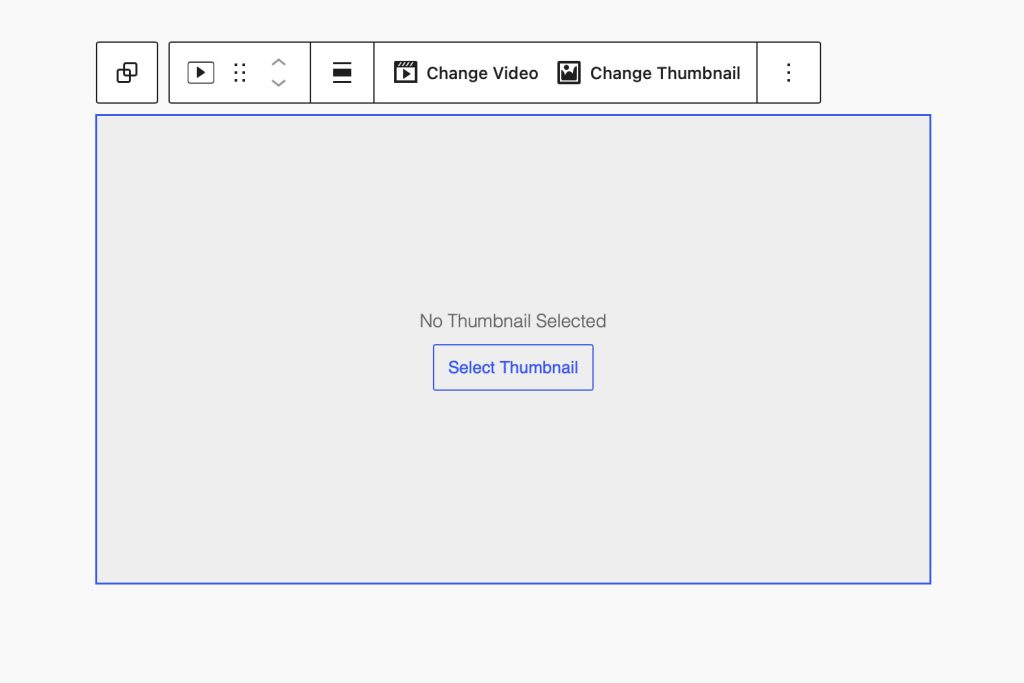
Once the block has been added to the editor you are invited to choose a thumbnail image. Click on the “Select Thumbnail” button to select a thumbnail from your WordPress Media Library.
Add a Video
Once you have added your thumbnail you are invited to add a video.
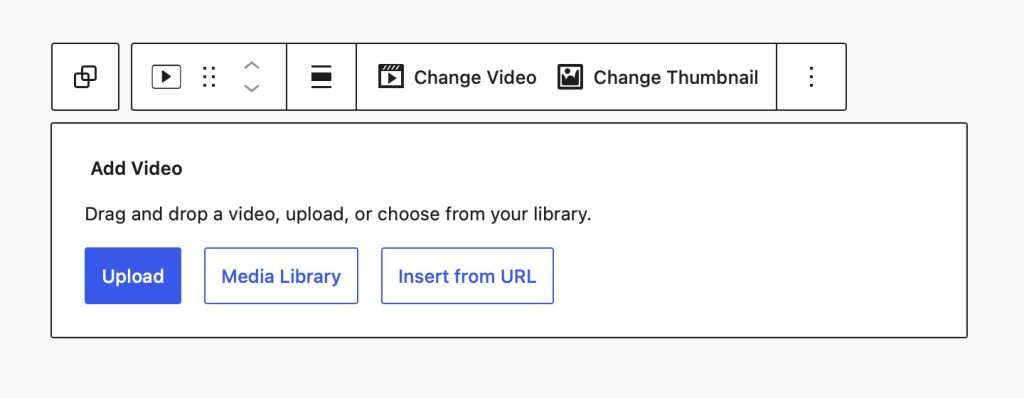
You can Upload videos, add videos from your Media Library, or use Insert from URL to embed videos from the listed providers.
- Bunny.net
- Cloudflare Stream
- Dailymotion
- Loom
- Vimeo
- VideoPress
- Wistia
- YouTube
Block Toolbar
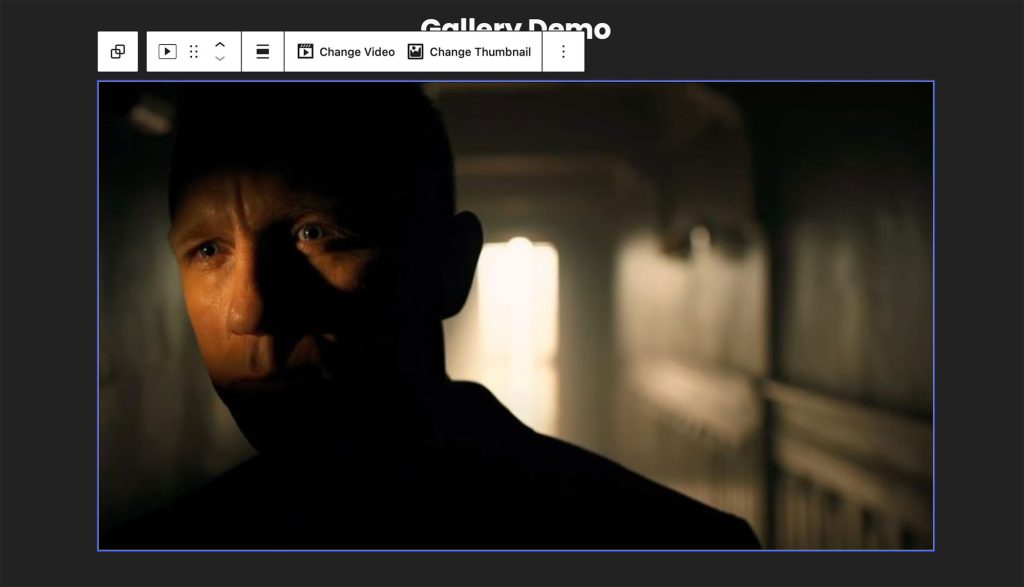
The Video Block toolbar gives you access to Alignment Controls allowing you switch between Content, Wide, or Full-Width, and it has a button to change the thumbnail.
Understanding the Video Block Panels
The FolioBlocks Video Block organizes its controls into three panels within the WordPress Block Editor: Content, Settings, and Styles. Each panel groups together related options, making it easy to find the controls you’re looking for.
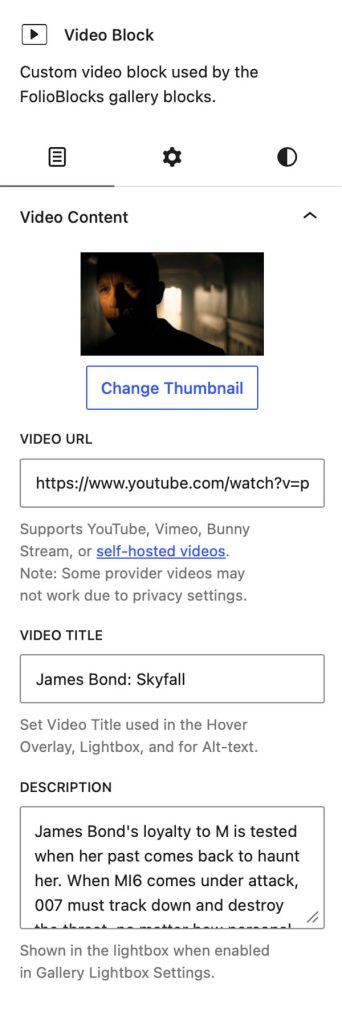
Content Panel
The Content panel contains information about the video itself.
Your selected thumbnail is visible and there is an option to change the image.
After that there is a section where you can edit the Video URL.
Then there are sections where you can edit the Video Title and Description. These fields are used in overlays and inside the Lightbox of the Video Block.
Settings Panel
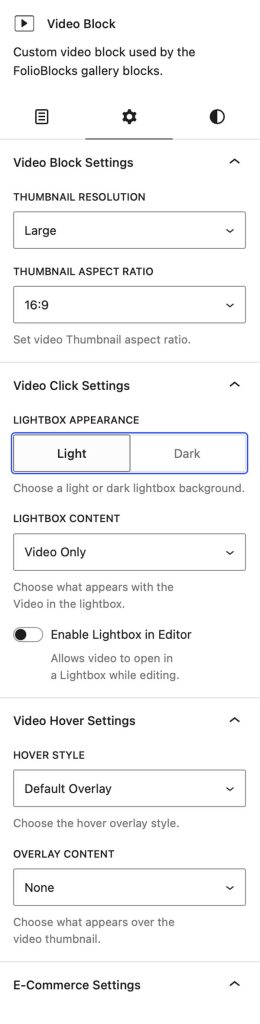
The Settings panel includes Video Block Settings for thumbnail behavior, Video Click Settings for Lightbox behavior, Video Hover Settings for overlays, and E-Commerce Settings for linking videos to WooCommerce products.
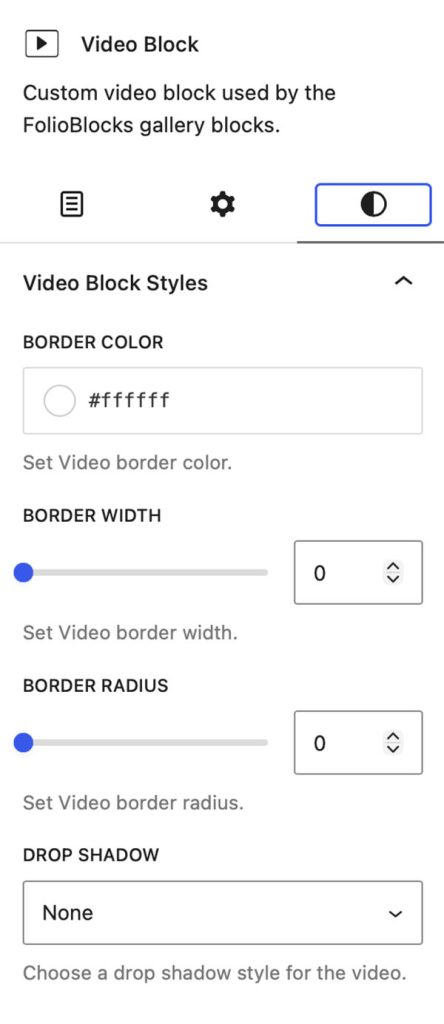
Styles Panel
The Styles panel contains all visual appearance settings for the Video Block.
From here you can customize options such as borders, border radius, drop shadows, and other design-related settings that control how the Video Block is displayed on the front end of your website.
Throughout the rest of this guide, we’ll explore each of these panels in detail and explain how they work together to help you create beautiful, responsive videos in the WordPress Block Editor.
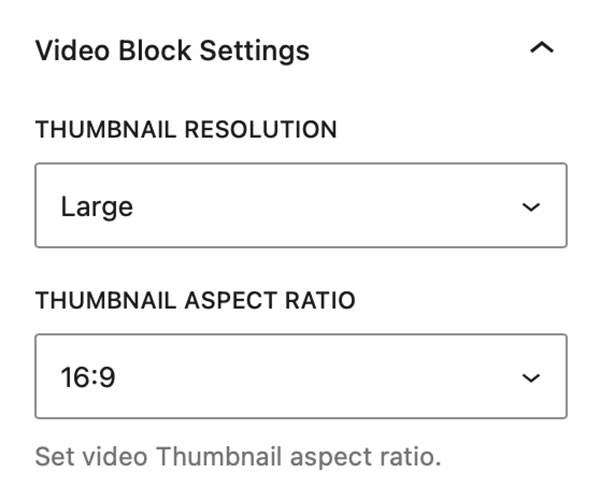
Video Block Settings
With the Video Block selected you can access the block’s settings panel, which contains the Video Block Settings panel.
Thumbnail Resolution
Choose among Thumbnail, Medium, Large, or Full — balancing quality and page load performance.
Thumbnail Aspect Ratio
Set the aspect ratio for the video block.
Video Click Settings
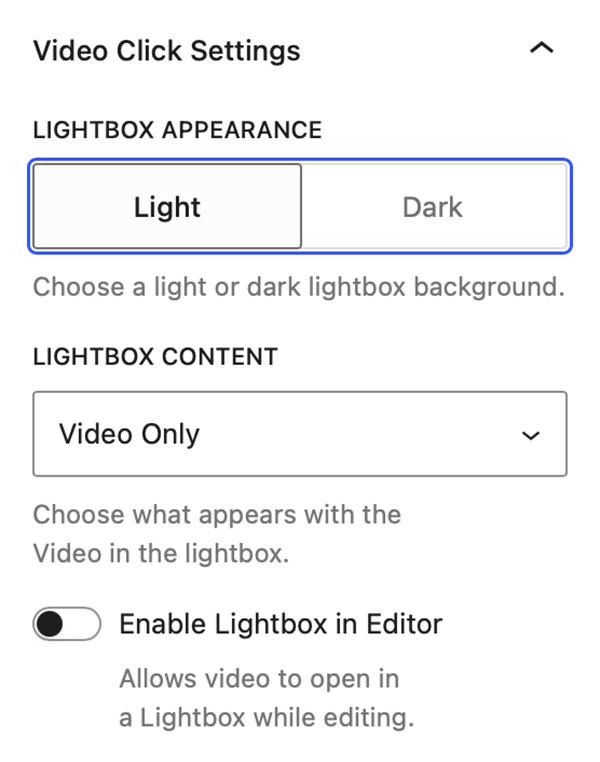
Lightbox Appearance
This setting allows you to choose between Light & Dark mode in the Video Lightbox.
Lightbox Content
This setting allows you to choose what is displayed in the Lightbox alongside your video. Options include:
- Video Only
- Video + Info
- Video + Product Info
Note: The Video + Product Info option is only available when Enable WooCommerce Integration is active.
Enable Lightbox in Editor
This feature allows you to open the Lightbox in the WordPress Block Editor so you can examine how it looks.
Video Hover Settings
From the Video Hover Settings panel, you can control video hover effects, overlay styles, overlay animations, and the content displayed when visitors hover over the video thumbnail.
Hover Effect
The Hover Effect dropdown lets you select from the following effects:
- None
- Desaturate
- Glare
- Lift
- Pan
- Pop
- Tilt
- Zoom In
- Zoom Out
Overlay Style
The Overlay Style dropdown lets you select a style for your hover overlay. You can choose from:
- Default Overlay
- Blur Overlay
- Color Overlay
- Gradient Overlay
Note: Overlays add an additional component to the Video Block’s styles panel that allows you to set color & typography styles.
Overlay Entrance
The Overlay Entrance dropdown allows you to select how the overlay enters over the thumbnail. You can select from:
- Default
- Fade
- Slide Up
- Slide Down
- Slide Left
- Slide Right
Overlay Content
The Overlay Content dropdown allows you to select what is displayed inside the overlay. You can select from:
- None
- Play Button
- Video Title
- Video Title + Play Button
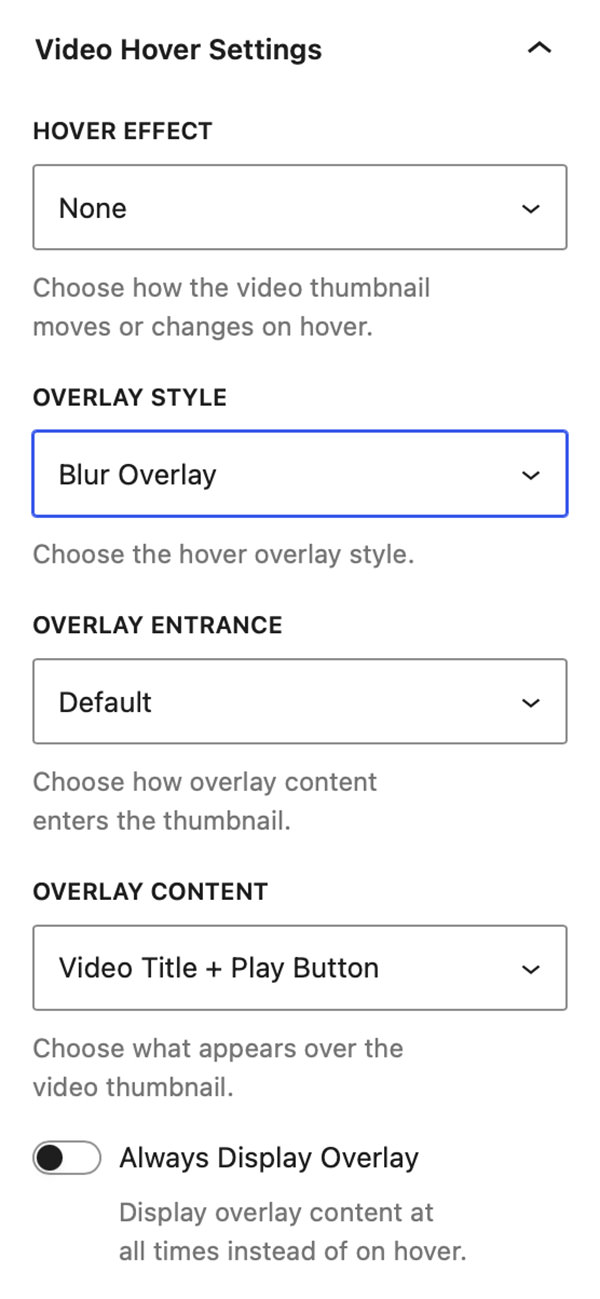
Always Display Overlay
Activate this toggle to always display the overlay above the Video Block’s thumbnail.
E-Commerce Settings
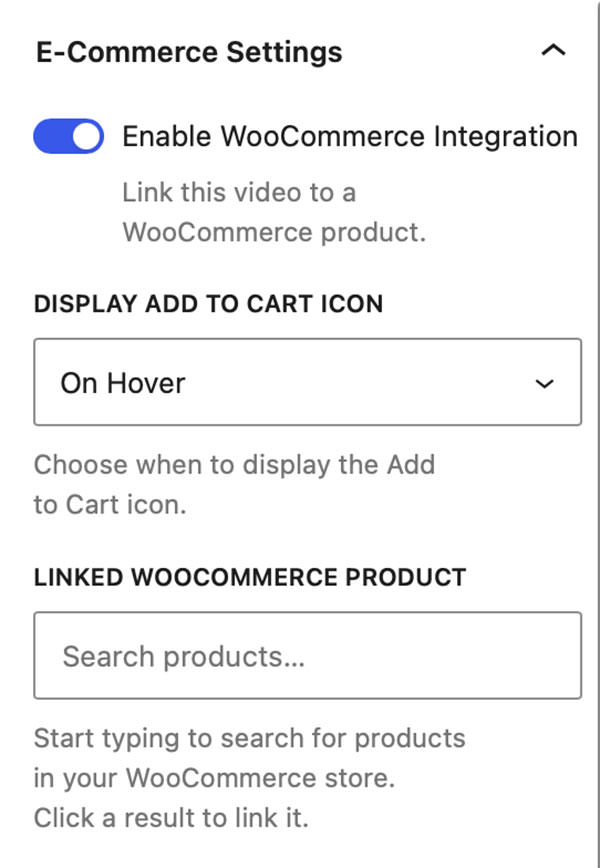
Enable WooCommerce Integration
Enables WooCommerce Integration allowing you to link the Video Block with WooCommerce products on your website.
Note: The Enable WooCommerce Integration toggle will only display if WooCommerce plugin is installed and active on your website.
Display Add to Cart icon
With Enable WooCommerce Integration turned on you will be presented with a new select control that lets you choose if you want to always display the Add to Cart button or display it only on hover.
Note: You can set the icon & background color for the Add To Cart icon by going to the Video Block’s styles panel when Enable WooCommerce Integration is active.
Linking Videos to WooCommerce Products
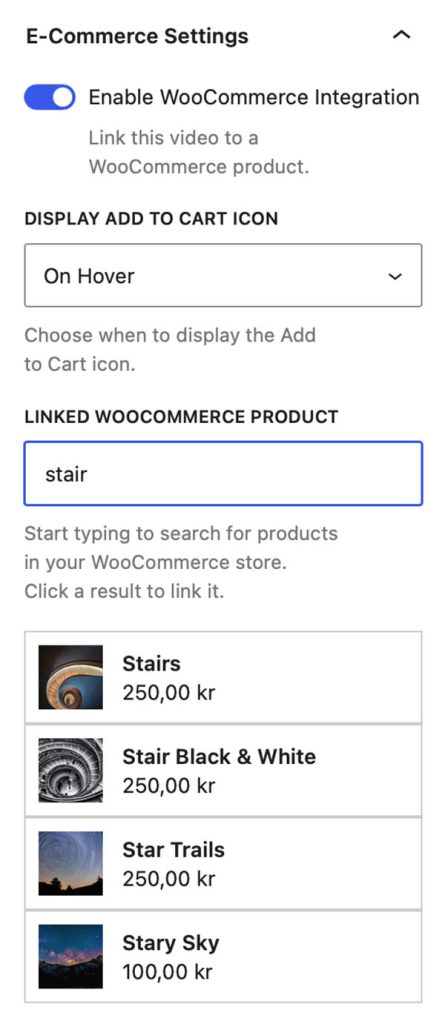
The Linked WooCommerce Products input field allows you to search through all WooCommerce products on your site.
Simply search for your product and select it to link it with the video.
Note: The Linked WooCommerce Products setting only appears when Enable WooCommerce Integration is active.
Set Add To Cart icon Behavior
The Default Add to Cart Icon Behavior select control allows you to set the default behavior of the Add to Cart icon. You can choose between the default “Add To Cart” or linking to the product page.
Video Block Styles
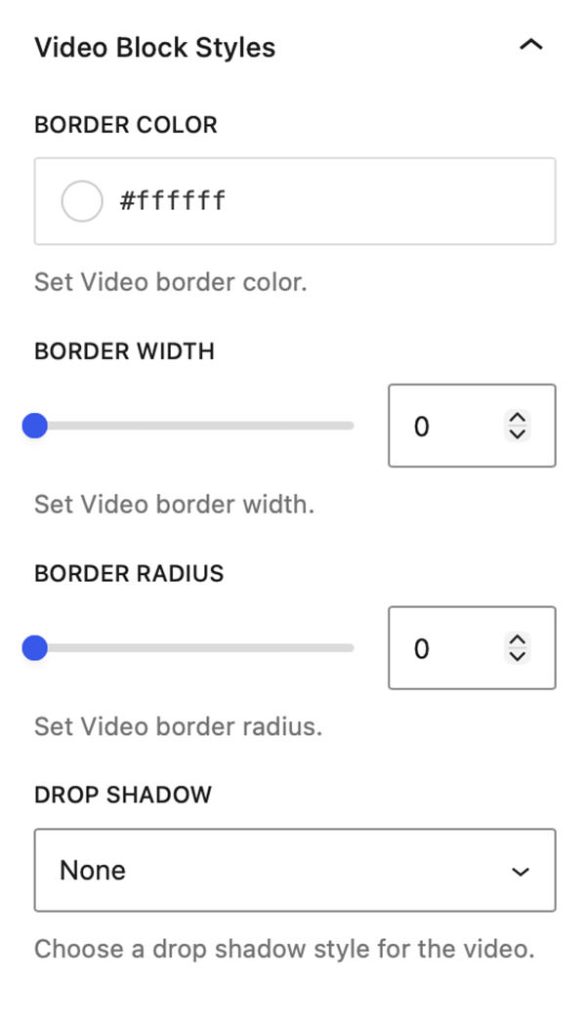
Border Color, Width, and Radius
Add borders around your video thumbnails to match your website’s design style. Rounded corners create a softer, modern look.
Drop Shadow
The Drop Shadow dropdown allows you to select from a variety of Drop Shadow effects and apply them to the video thumbnail. You can select from the following types of Drop Shadow:
- None
- Subtle
- Soft
- Elevated
- Dramatic
Page/Post Settings
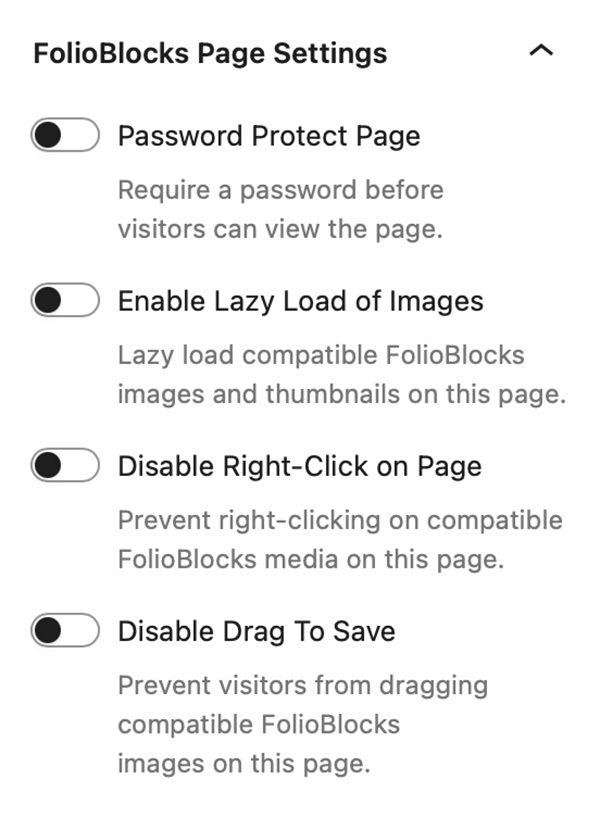
Starting with FolioBlocks 1.4, several controls that were previously located in the block’s Advanced settings have been moved to a dedicated FolioBlocks Page Settings panel in the Page/Post sidebar.
These features operate at the page level rather than the individual block level, so moving them out of the block settings creates a more intuitive editing experience and prevents the same feature from being enabled multiple times when a page contains several FolioBlocks blocks.
The FolioBlocks Page Settings panel is automatically added to the Page or Post sidebar whenever a FolioBlocks block is inserted into the WordPress editor. From this central location, you can configure settings that apply across the entire page, including the following features:
Password Protect Page
Requires a password before visitors can view the page.
Enable Lazy-Load of Images
When active, images load as the user scrolls, improving initial page load speed.
Disable Right-Click on Page
Attempts to disable right-click to discourage casual image downloads.
Note: This makes it harder for casual users to save images, but it’s not foolproof — advanced users can still access media via the browser’s developer tools or view source.
Disable Drag To Save
Prevents visitors from being able to drag images out of the browser to save them.
Example Video Block

Frequently Asked Questions (FAQ)
What is the Video Block in FolioBlocks?
The Video Block is a WordPress block for displaying a single video with a polished, professional layout. It is designed for portfolios, video showcases, featured projects, trailers, tutorials, and other pages where one video needs to stand out.
What video sources does the Video Block support?
The Video Block supports self-hosted video files and embeds from Bunny.net, Cloudflare Stream, Dailymotion, Loom, Vimeo, VideoPress, Wistia, and YouTube. This gives you flexibility depending on where your videos are hosted.
Can I use the Video Block for portfolio pages?
Yes. The Video Block is ideal for portfolio pages where you want to feature a single video project, client work, film, animation, product demo, or behind-the-scenes clip.
Does the Video Block work with the WordPress Block Editor?
Yes. The Video Block is built for the WordPress Block Editor, also known as Gutenberg. You can add it directly to posts, pages, templates, and block-based layouts.
Can I customize how the video looks?
Yes. The Video Block includes styling controls that let you adjust the presentation of your video so it fits the design of your website.
Can videos open in a Lightbox?
Yes. The Video Block can be used with Lightbox-style viewing, allowing visitors to watch the video in a focused overlay without leaving the page.
Is the Video Block responsive?
Yes. Videos added with the Video Block are responsive and adapt to different screen sizes, including desktop, tablet, and mobile layouts.
When should I use the Video Block instead of the Video Gallery Block?
Use the Video Block when you want to showcase one specific video. Use the Video Gallery Block when you want to display multiple videos together in a gallery layout.
Get Started
Ready to build your first Video Block? Download FolioBlocks for free or upgrade to Pro for advanced features like Lightbox playback, hover overlays, WooCommerce integration, and page-level image protection.
Get FolioBlocks and start creating stunning, responsive galleries in the WordPress Block Editor today.