
If you regularly use the same gallery settings across your website, recreating them for every new page or post can quickly become repetitive. While FolioBlocks does not currently include global gallery settings, WordPress Patterns provide an excellent alternative.
By combining FolioBlocks with the built-in Pattern system in the WordPress Block Editor, you can create reusable gallery presets that can be inserted anywhere on your website in just a few clicks.
In this tutorial, we’ll show you how to use WordPress Patterns with FolioBlocks gallery blocks to create a reusable gallery preset that can be used as a starting point for future galleries.
Table of Contents
Using WordPress Block Patterns as Gallery Presets
A WordPress Block Pattern is a block or group of blocks that can be saved and reused throughout your website. Patterns make it faster to build pages and posts by allowing you to insert preconfigured content directly into the editor.
WordPress supports two types of patterns:
Synced Patterns
A Synced Pattern stays connected wherever it is used. Any changes made to the pattern are automatically applied to every instance across your website.
This can be useful for portfolio galleries that appear in multiple locations. For example, imagine you have a photography website available in both English and Spanish. You could create a synced pattern containing your portrait photography portfolio and insert it on both language versions of the page.
As you add, remove, or rearrange images, every instance of the pattern updates automatically, ensuring both pages remain synchronized.
Un-Synced Patterns
An Un-Synced Pattern acts as a reusable starting point. Once inserted, it becomes independent from the original pattern and can be customized without affecting other instances.
This makes un-synced patterns ideal for creating gallery presets. You can configure a FolioBlocks gallery exactly the way you like it, save it as a pattern, and then use it whenever you create a new gallery.
Instead of repeatedly configuring the same settings, you’ll have a ready-made template waiting for you.
How to use Block Patterns with FolioBlocks
Let’s walk through the process step by step.
In this example, we’ll create a reusable preset for the Masonry Gallery Block with our preferred settings already configured.
We begin by adding a Masonry Gallery Block to the editor.
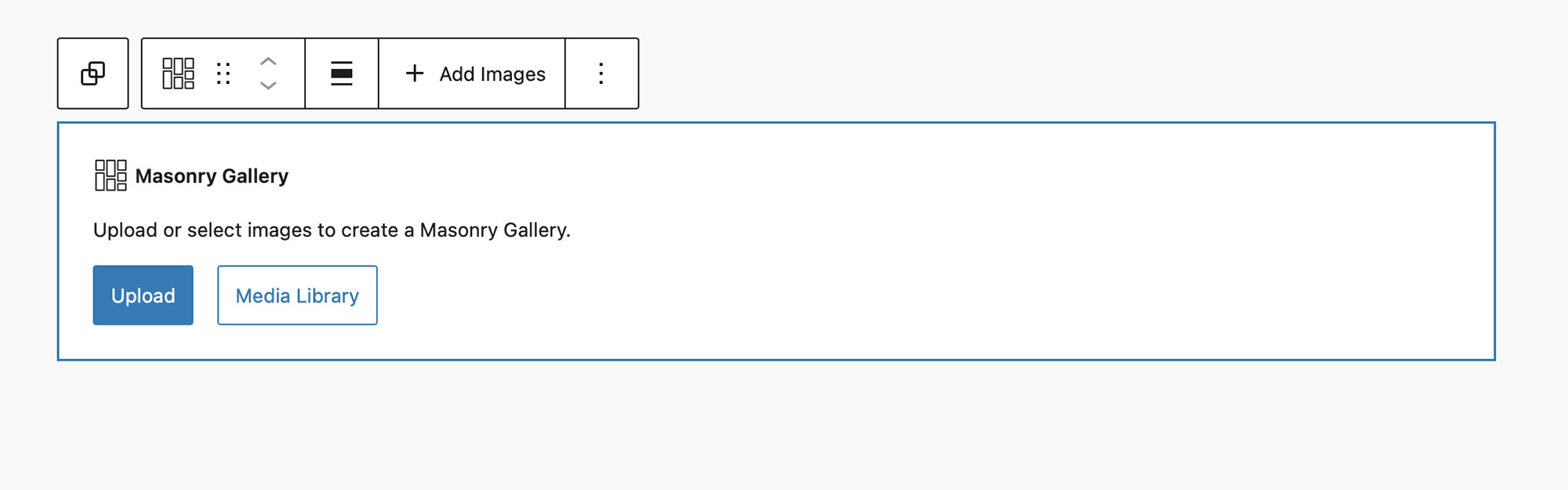
Next, open the block settings and configure the gallery exactly the way you want future galleries to behave.
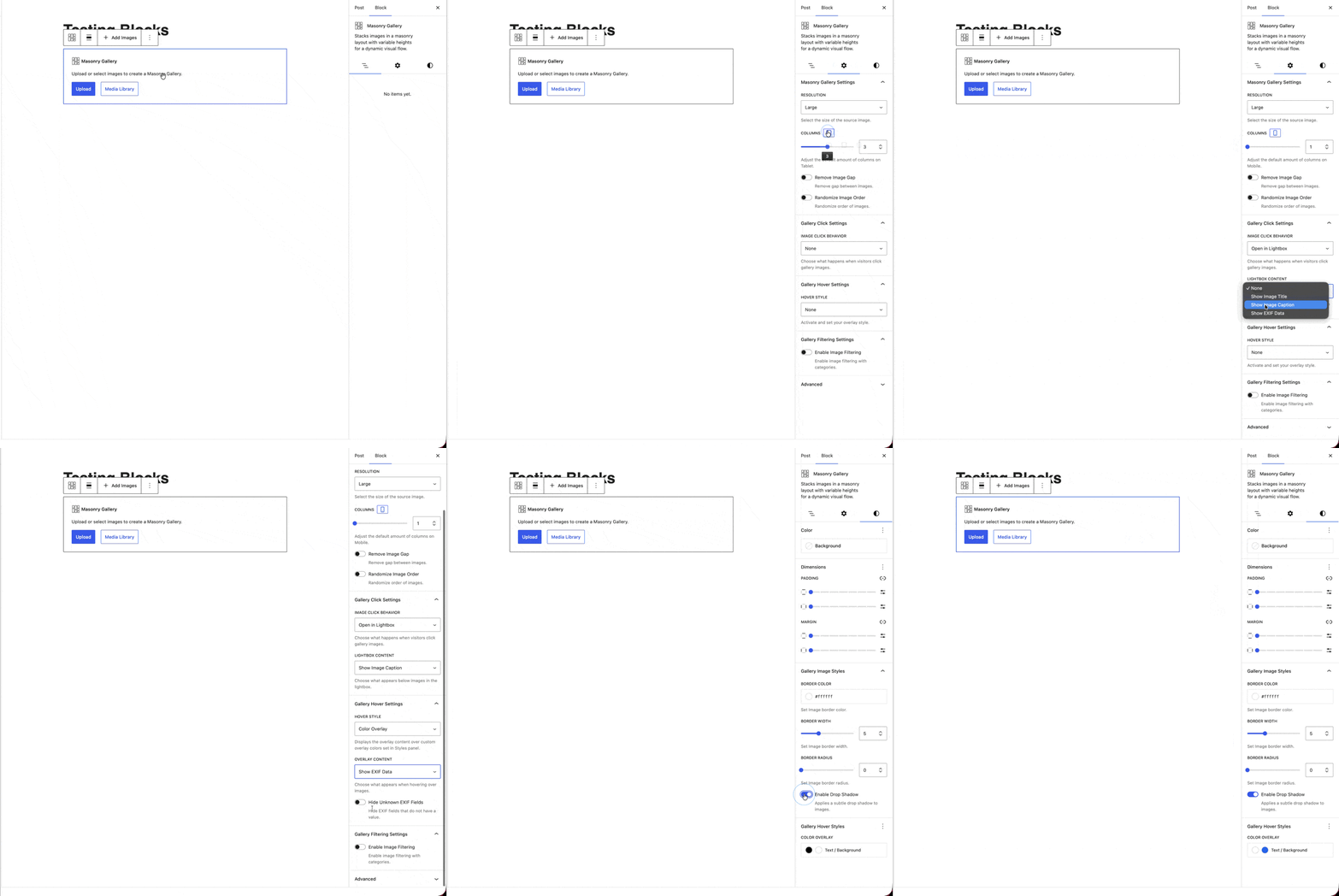
In the example above, we made the following changes:
- Set default column values for Desktop, Tablet, and Mobile devices.
- Configured the Gallery Click Settings to open images in a Lightbox.
- Enabled Image Captions within the Lightbox.
- Configured Gallery Hover Settings to use a Color Overlay.
- Enabled EXIF Data within the hover overlay.
- Added a 5px border to all gallery images.
- Enabled Drop Shadow effects.
- Customized the overlay background and text colors.
Once your gallery is configured, you can save it as an Un-Synced Pattern.
Click the three-dot menu in the block toolbar, then select Create Pattern.
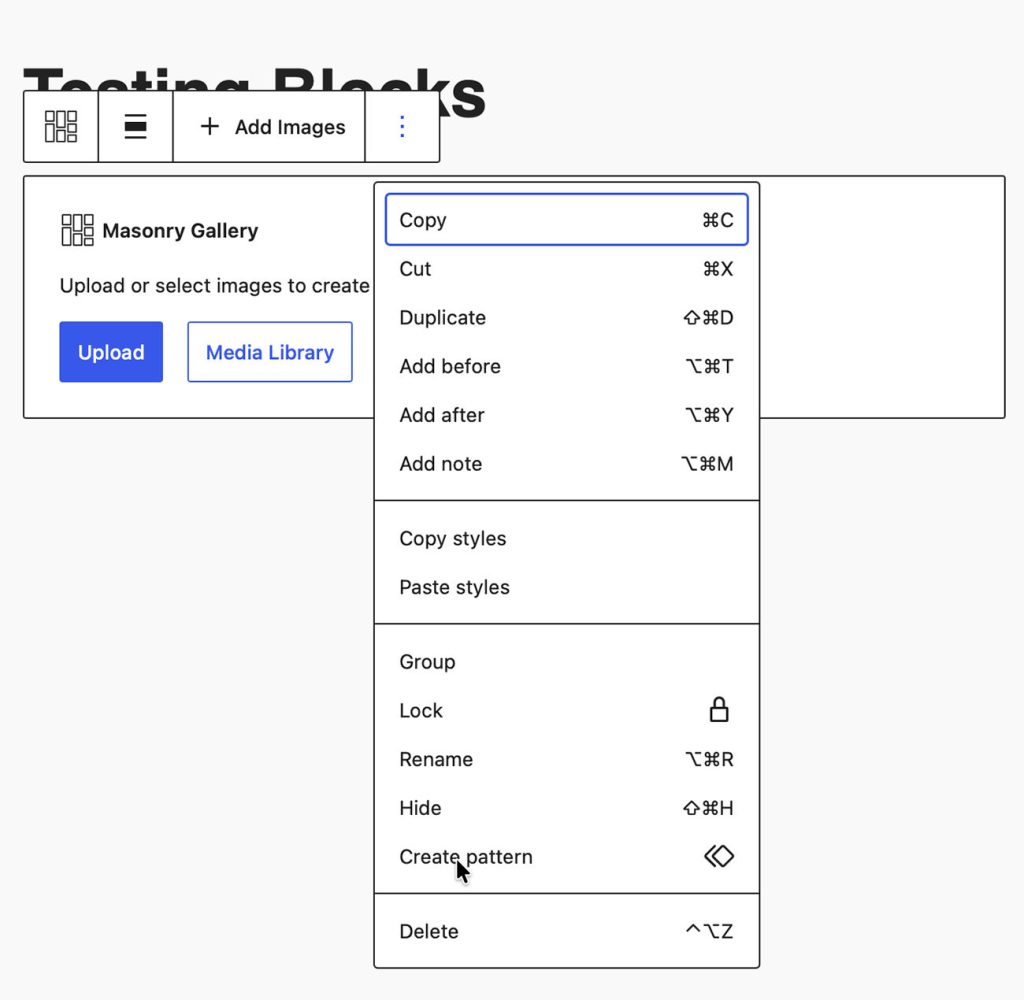
You will then see the Create Pattern dialog.
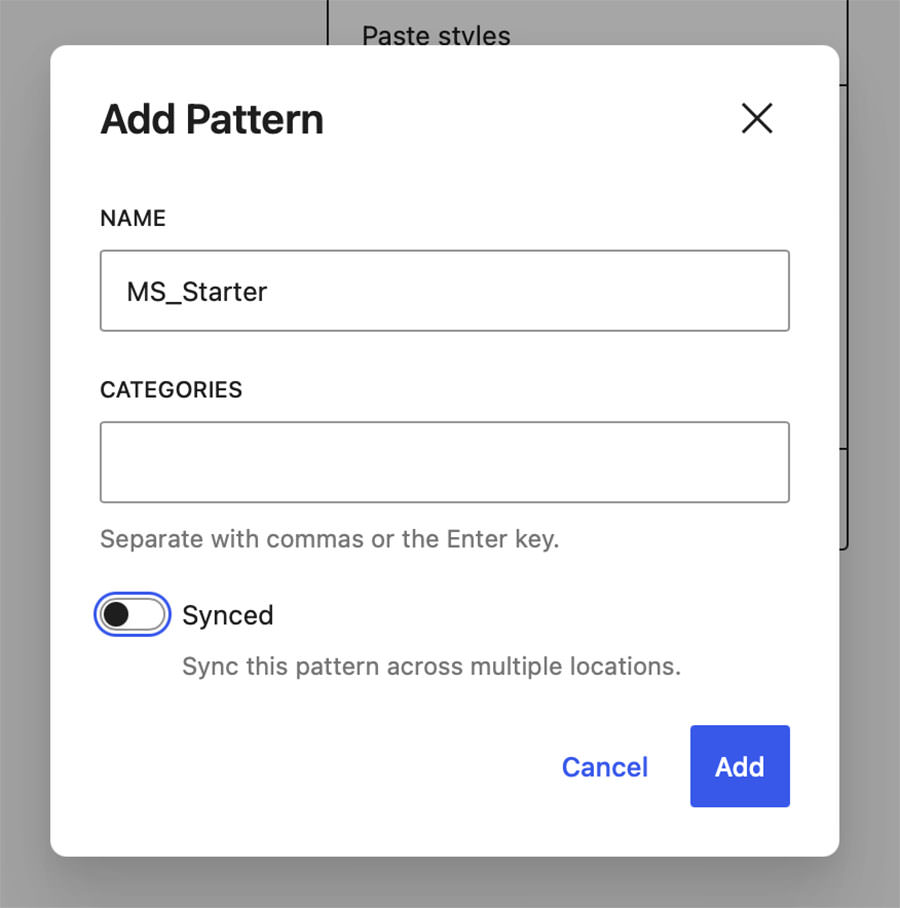
For this example, we’ll name the pattern MS_Starter (short for Masonry Starter).
Leave the Category field empty and make sure Synced remains disabled. Then click Add to save the pattern.
Your gallery presets are now ready to use.
Using Your New Gallery Presets
Whenever you want to create a new Masonry Gallery with the same settings, simply open the block inserter and type:
/MS_
WordPress will display your saved pattern, allowing you to insert it instantly.
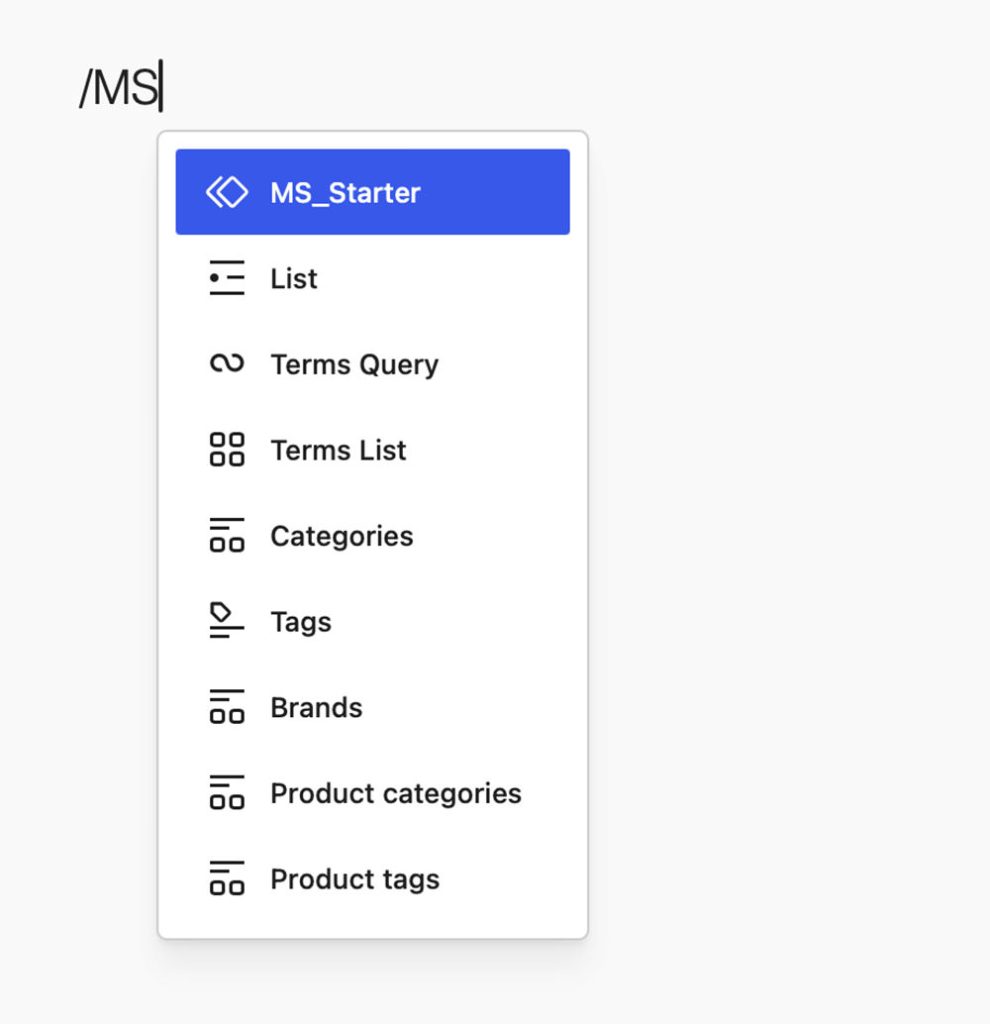
All of your preferred FolioBlocks settings will already be configured, allowing you to focus on adding images instead of repeatedly adjusting settings.
Continue Learning
Looking for more ways to build beautiful galleries with FolioBlocks? Check out these step-by-step tutorials:
- Create a Beautiful Justified Gallery with the Block Editor – Learn how to build professional row-based image galleries with perfectly balanced image heights.
- How to Create a Masonry Gallery in the WordPress Block Editor (Gutenberg) – Create Pinterest-style layouts that preserve the natural proportions of your images.
- Build a Clean Grid Gallery in the WordPress Block Editor – Display your images in a clean, responsive grid layout with powerful customization options.
- Create a Responsive Image Carousel in WordPress – Showcase your images in a swipe-friendly carousel with navigation controls and autoplay support.
- Add a Filterable Video Gallery to the WordPress Block Editor – Organize videos into categories and let visitors quickly browse your content.
- Modular Gallery Block for WordPress: Professional Photo Layouts Made Easy – Build custom magazine-style image layouts with complete control over your gallery structure.
- Compare Images Easily with the Before & After Block in WordPress – Create interactive before-and-after comparisons with an intuitive slider interface.
Together, these tutorials cover many of the most popular FolioBlocks layouts and features, helping you build everything from photography portfolios and creative showcases to video galleries and interactive image comparisons.
Final Thoughts
While global gallery settings are something we’re actively exploring for a future version of FolioBlocks, WordPress Patterns already provide a powerful solution today.
Whether you choose Synced Patterns that update automatically across your website or Un-Synced Patterns that serve as reusable gallery presets, patterns can dramatically speed up your workflow and help maintain consistency throughout your galleries.
If you regularly build galleries with the same layout, hover effects, lightbox settings, or styling options, creating a few reusable FolioBlocks presets is one of the easiest ways to work more efficiently in the WordPress Block Editor.