
Updated: February 17th, 2026 for FolioBlocks Version 1.2
The Grid Gallery Block in FolioBlocks helps you create clean, evenly spaced image grids inside the WordPress Block Editor (Gutenberg) — no short-codes, no settings screens, no fuss.
Note: This guide covers features available in the Professional (Pro) version of FolioBlocks. Some options and settings described here may not be included in the free version.
Table of Contents
What Is the Grid Gallery Block?
The Grid Gallery Block is part of the FolioBlocks plugin and gives you a more traditional, uniform grid layout (images in rows and columns) compared to the Masonry layout. Each image in a row aligns to the same height (or width), giving your gallery a tidy, balanced look.
It’s ideal for:
- Portfolios with consistent image orientations
- Projects, product showcases, and grid-based visual storytelling
- Situations where a strict, regular layout is preferred over organic flow
How to Add the Grid Gallery Block
1. Insert the Block
In the WordPress Block Editor, click ➕ Add Block and search for “Grid Gallery”. You’ll find it under the FolioBlocks section.
2. Upload or Select Images
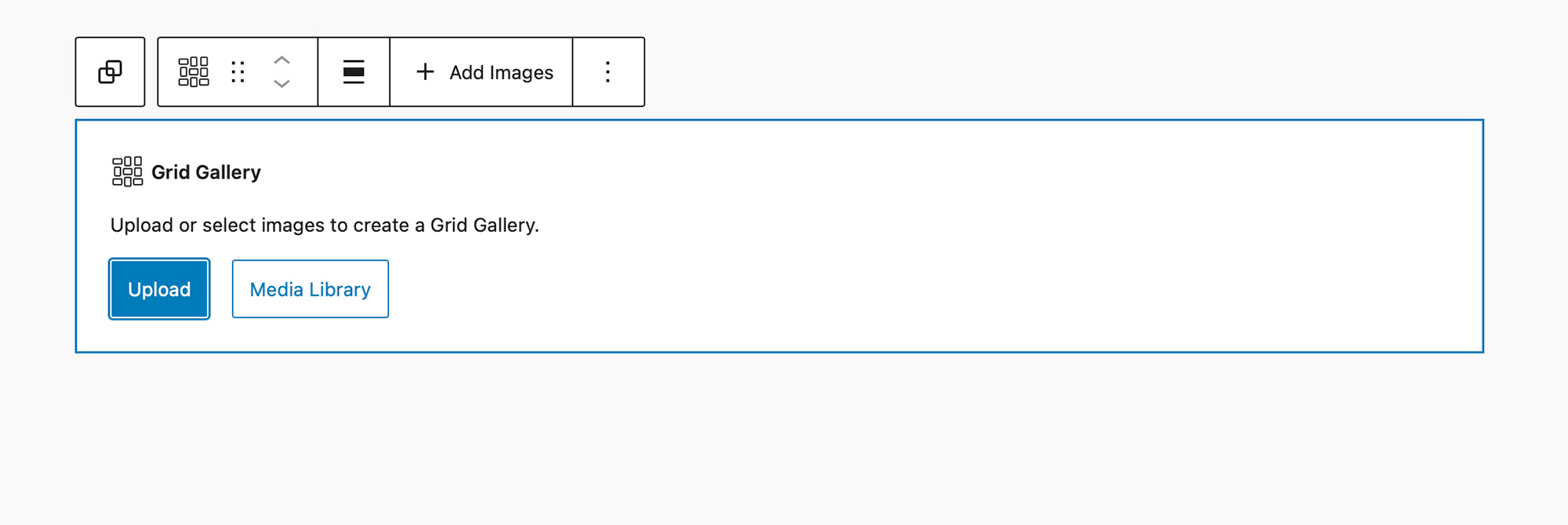
Choose images via the Media Library or upload new ones. You can select multiple images at once and reorder them with drag-and-drop either directly in the grid or via the List View.
3. Adjust Gallery Width & Image Order
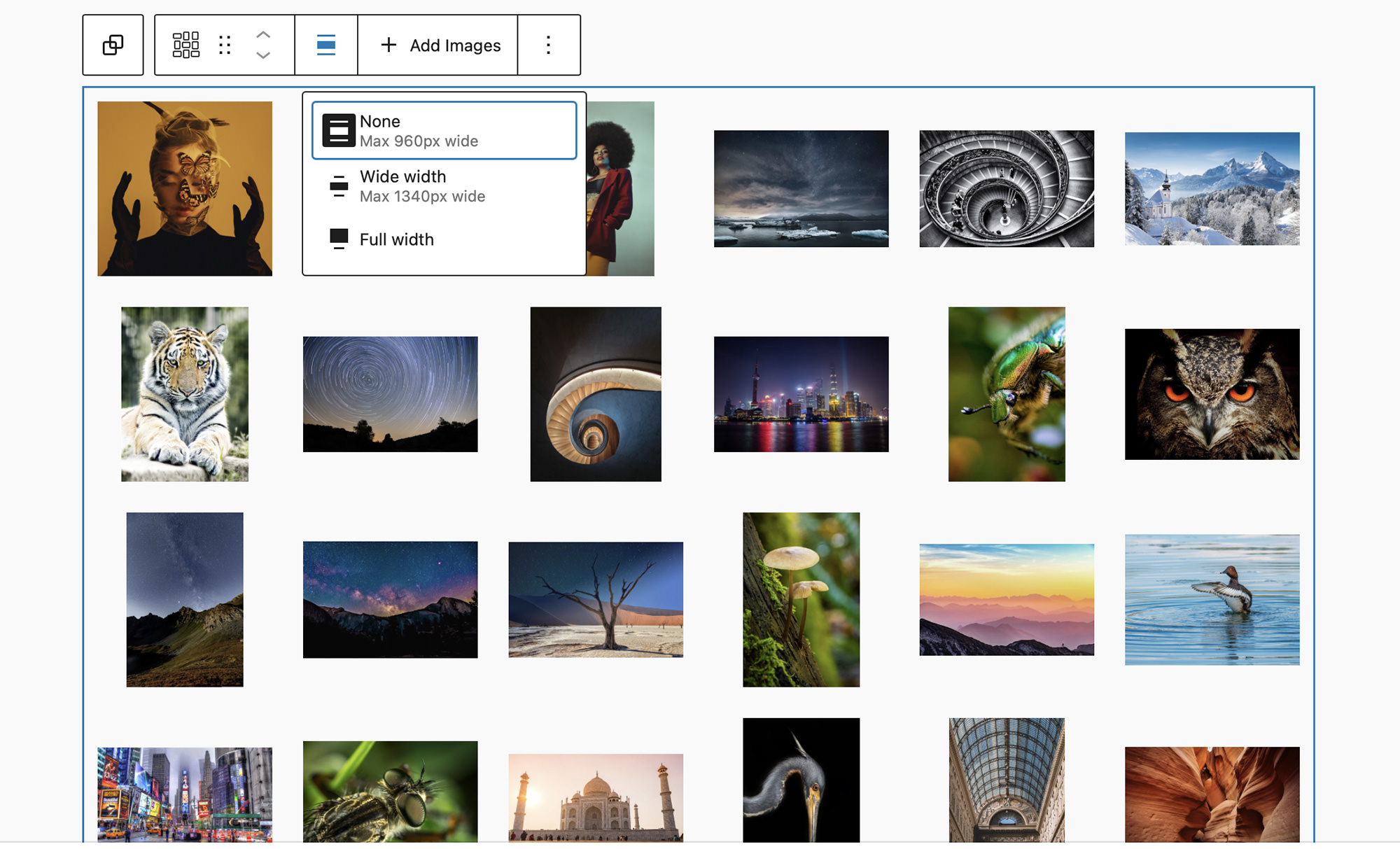
Use the alignment controls in the block toolbar to select Content Width, Wide Width, or Full Width, depending on how expansive you want your gallery to go.
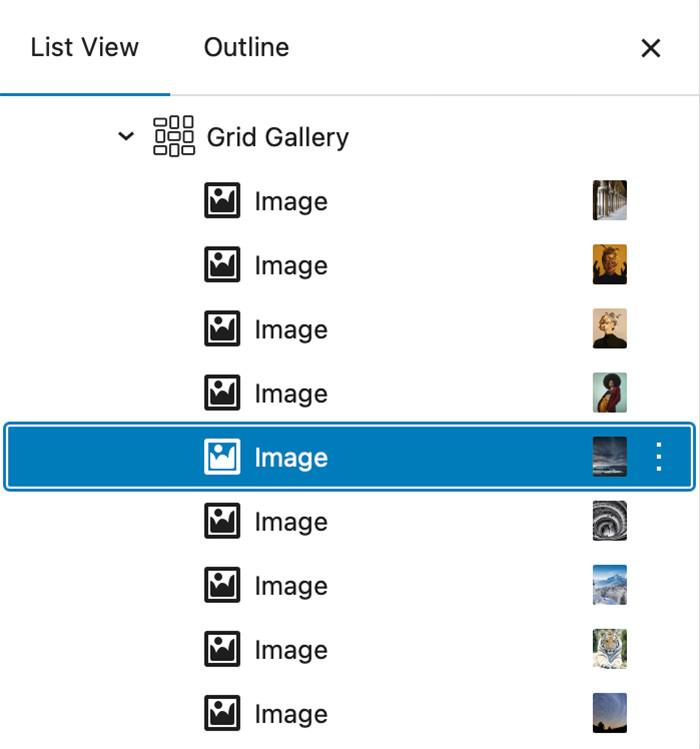
Since the Grid Gallery Block renders images as inner blocks you can easily re-arrange images in the gallery by selecting them in the List View (on the left hand side) and dragging and dropping images into your preferred order.
General Gallery Settings
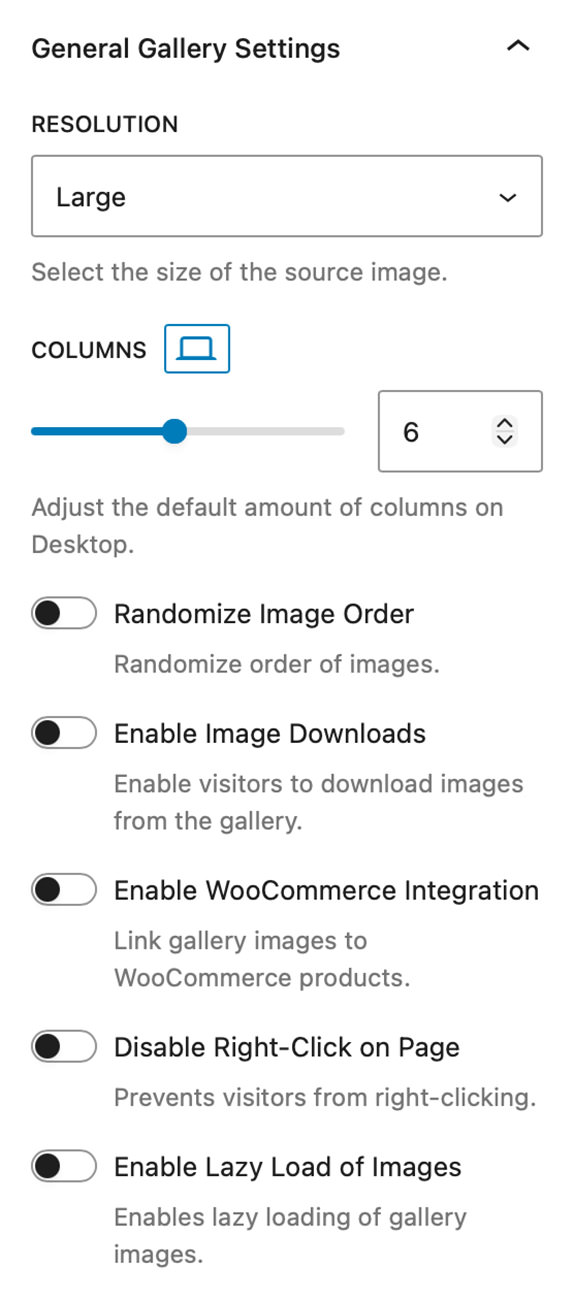
Image Resolution
Choose among Thumbnail, Medium, Large, or Full — balancing quality and page load performance.
Columns
The Grid Gallery Block is fully responsive and built for modern WordPress. You can define separate column counts for Desktop, Tablet, and Mobile, ensuring your galleries always look balanced.
Randomize Image Order
Enable to reshuffle image order on each page load (great for repeat visitors).
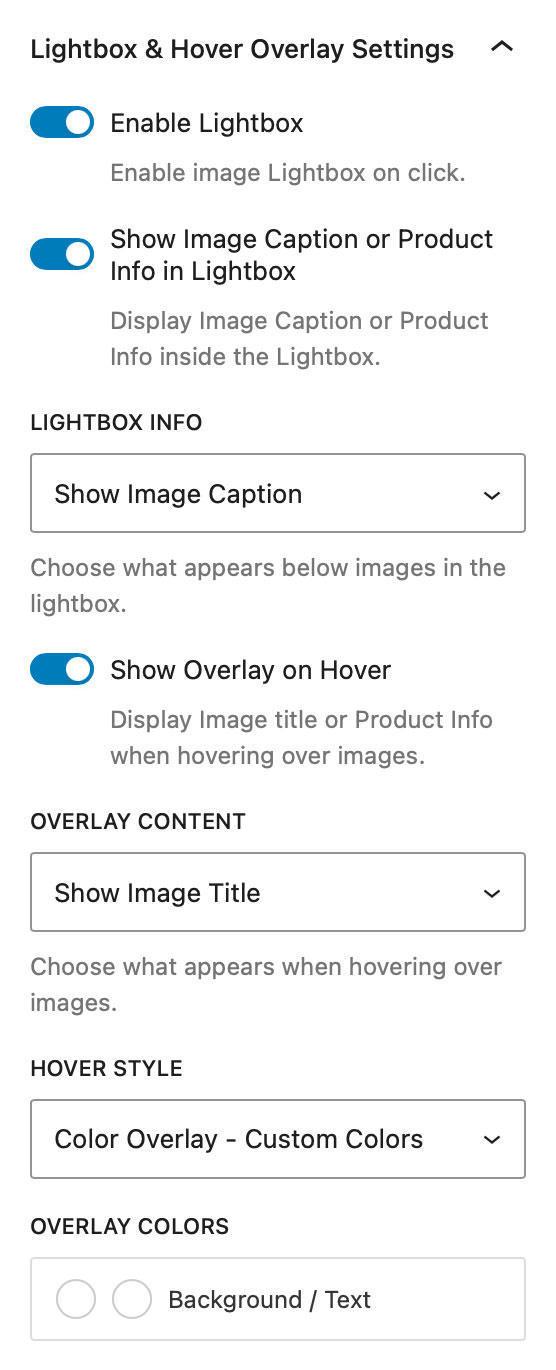
Lightbox & Hover Overlay Settings
Enable Lightbox
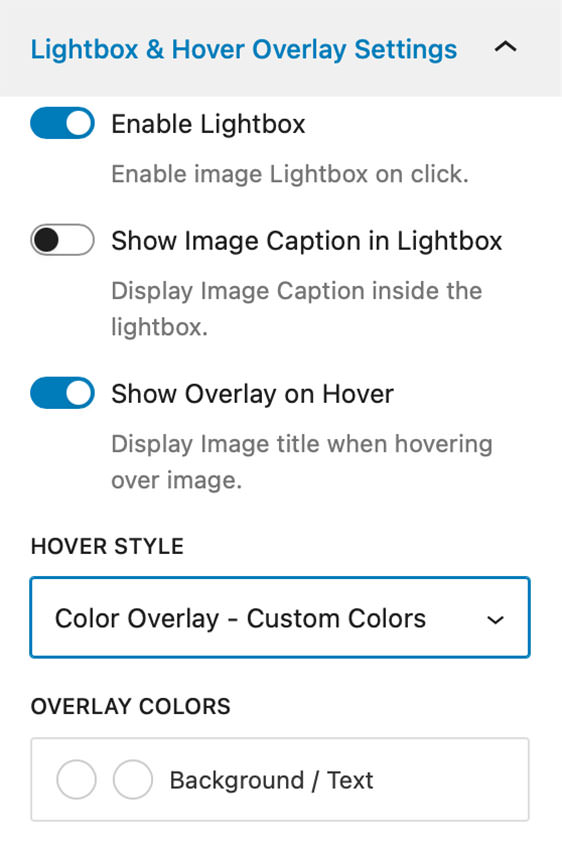
Enable the built-in Lightbox to let visitors view your images full-screen when the user clicks on them.
It supports keyboard navigation and swipe gestures. When activated an additional toggle to show image captions within the Lightbox view is enabled.
Note: Show Caption in Lightbox control only displays when Enable Lightbox is active
Show Overlay on Hover
The Show Overlay on Hover toggle enables an overlay effect with the Image title to display when you hover over an image.
An additional Select Control allows you to set the Hover Style where you can select from a Blur, Fade, Gradient, Chip, or Color Overlay. With the Color Overlay selected you can additionally customize the color of the text and background on the Overlay.
You can edit each image’s Caption, Title, or Alt Text directly from the image block settings.
Note: Changes made to Image’s caption, title, or alt text currently do not sync back to the WordPress Media Library.
Gallery Filter Settings
Enable Image Filtering
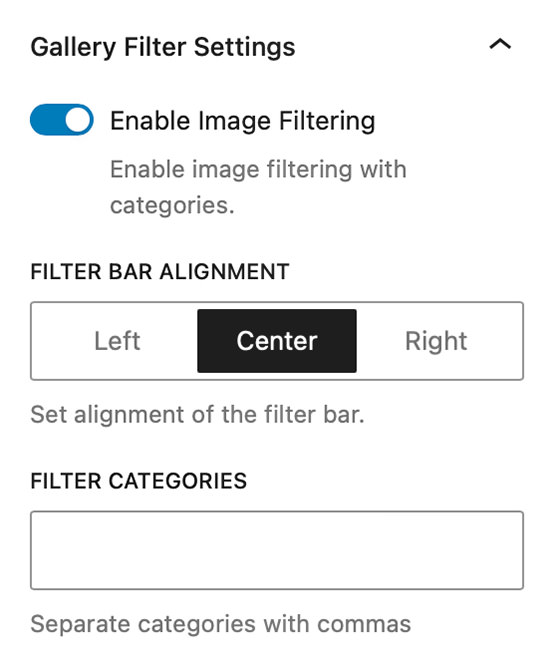
When filtering is enabled, you can assign categories to images (e.g., “Sports,” “Portraits,” “Events”) and allow visitors to toggle between them.
First you have the Filter Bar Alignment settings which allows you set the alignment of the bar with your added categories (e.g., “All, Sports, Portraits, Events”).
Then you have the Filter Categories input. Here you can add your filter categories (e.g. “Portraits, Events, Landscape”) separated by commas.
Once you have added your categories you can now select the individual images inside your Grid Gallery Block and in their block settings there will be a new Filter Categories dropdown select control where you can apply one of the categories to the image.
Note: Additional style options for the Filter Bar are available in the blocks style settings panel.
E-Commerce Settings
Enable Image Downloads
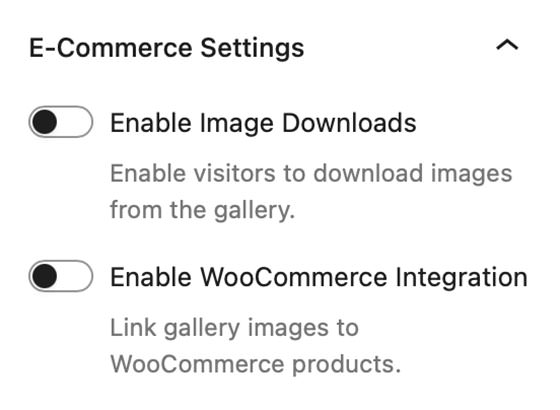
Allows you to add a download icon to each image thumbnail and inside the Lightbox, allowing clients or visitors to save high-resolution versions of your work.
When enabled an extra drop-down select control is enabled which allows you to specify if you want to always display the download icon or display it only when the user hovers over the image.
Settings for setting the icon & background color of the Download icon can be found in the Grid Gallery Block’s styles panel when the Enable Image Downloads setting is active.
Note: Enable Image Downloads can not be used when Enable WooCommerce Integration is active.
Enable WooCommerce Integration
This toggle enables WooCommerce Integration allowing you to link gallery images with WooCommerce products on your website. Instructions for WooCommerce integration are included later in this tutorial.
Note: Toggle for Enable WooCommerce Integration will only display if WooCommerce plugin is installed and active on your website. Enable WooCommerce Integration can not be used when Enable Image Downloads is active.
Advanced Settings
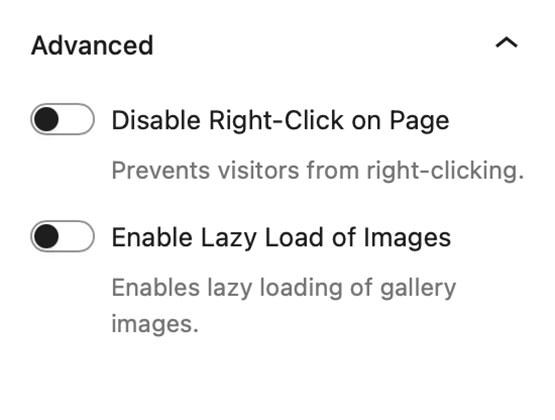
Disable Right-Click on Page
Attempts to disable right-click to discourage casual image downloads.
Note: This makes it harder for casual users to save images, but it’s not foolproof — advanced users can still access media via the browser’s developer tools or view source.
Enable Lazy-Load of Images
When active, images load as the user scrolls, improving initial page load speed.
Gallery Styles Panel
Background
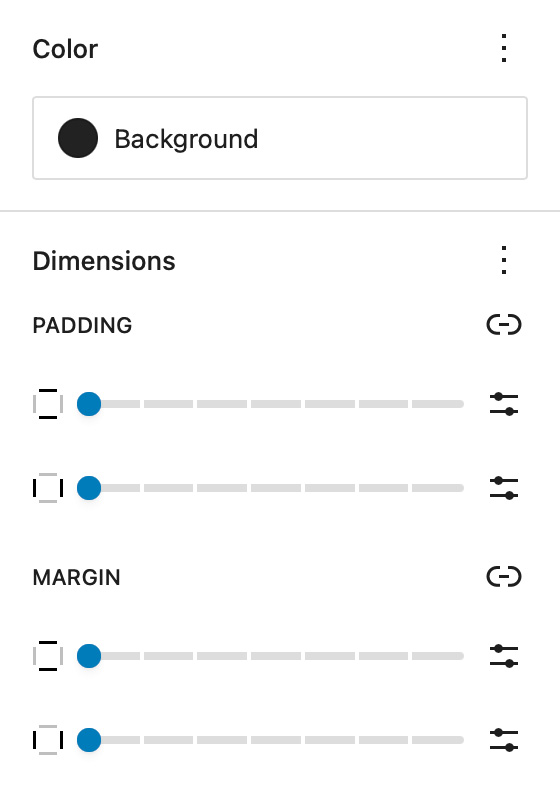
The Background setting allows you to customize the backdrop behind your Grid Gallery block. You can choose any color from your theme palette or define a custom color to help your images stand out or blend seamlessly with the surrounding layout.
A subtle background tone can make white borders or drop shadows more visible, while a dark background often enhances contrast and gives a cinematic look.
Dimensions – Padding & Margin
The Padding and Margin controls give you fine-grained control over the spacing inside and around your Grid Gallery block.
Use Padding to create breathing room between your gallery content and its edges — useful for highlighting the gallery within a colored background.
Use Margin to control the outer spacing between the gallery and adjacent blocks or page sections, ensuring perfect alignment and balance within your overall page design.
Gallery Image Styles
Border Color, Width, & Radius
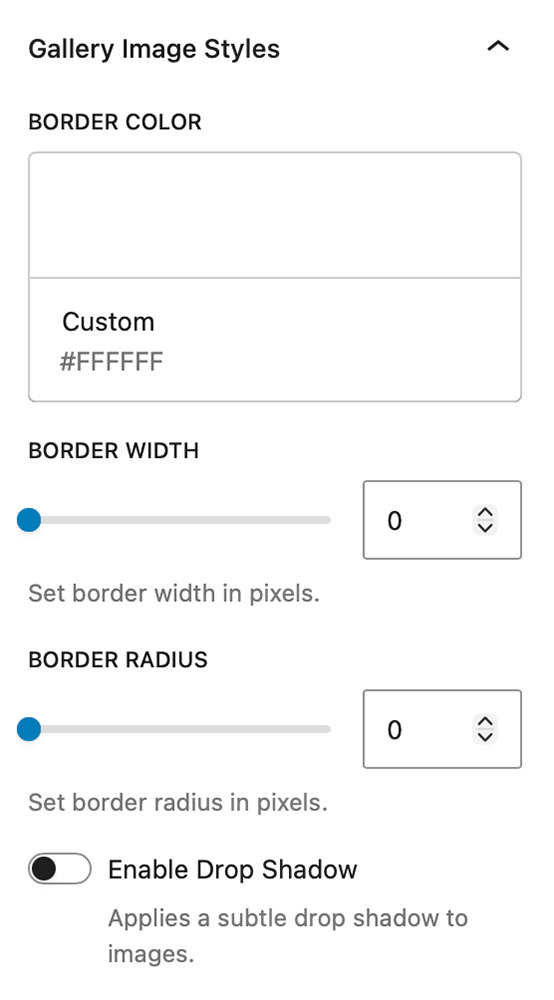
These settings allow you to add custom borders to the images in your gallery. Select the color of your border and then adjust the border width slider to your liking.
The images in the editor update in real time so you can see how they look without having to visit the front end of the site.
Border Radius slider allows you to add a radius to the corner of the images to further create special effects.
Enable Drop Shadow
Enable Drop Shadow adds a subtle drop shadow to your images that helps them pop off the page.
Filter Bar Styles

When Enable Image Filtering is active the Filter Bar Styles panel will be present in the Grid Gallery Block’s style panel.
Font-Family, Font Size, Appearance, Line Height, Letter Spacing, Decoration, & Letter Case
When using a block based theme that uses theme.json FolioBlocks will detect available fonts and let you set the font for the Filter Bar. Additional controls allow you to set Font Size, Appearance, Line Height, Letter Spacing, Decoration, and Letter Case styles.
Active – Text Color & Active – Background Color
These two settings allow you to set the color and background color for the active term in the Filter Bar.
Inactive – Text Color & Inactive – Background Color
These two settings allow you to set the color and background color for the inactive terms in the Filter Bar.
Note: The font used in the Filter Bar for Active and Inactive terms is pulled from your theme’s body font.
WooCommerce Integration
Display Add To Cart icon
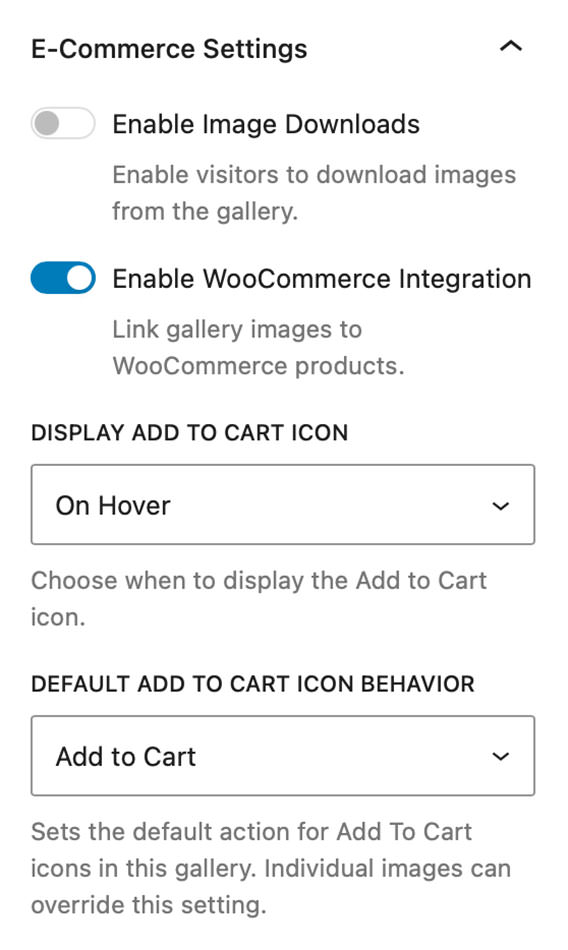
With Enable WooCommerce Integration turned on you will be presented with a new select control that lets you choose if you want to always display the Add To Cart button or Display it only Hover.
You can set the icon & background color for the Add To Cart icon by going to the Grid Gallery Block’s styles panel when Enable WooCommerce Integration is active.
Set Add To Cart icon Behavior
The Default Add to Cart Icon Behavior select control allows you to set the default behavior of Add to Cart Icons for the entire gallery. You can choose between the default “Add To Cart” or linking to the product page.
This setting can be overridden on an image per image basis. Giving you the option to set one behavior for the gallery and then override it on images as needed.
Lightbox & Hover Settings for WooCommerce
Additional settings controls are added in Lightbox & Hover Settings when Enable WooCommerce Integration is active.
If you Enable Lightbox you will now have an additional option to Show Image Caption or Product Info inside the Lightbox.
The same applies to Show Overlay on Hover, it now gives you the option to display the Image Title or to display the Product Name & Price.
These two options downgrade gracefully so there is no need for you to link every image in your gallery to a WooCommerce product. Image linked to products will display the Product Description in Lightbox or Product Name & Price on Hover and Images not linked to WooCommerce products will default to showing the Image Caption in the Lightbox and the Image Title on Hover.
Linking Images to WooCommerce Products
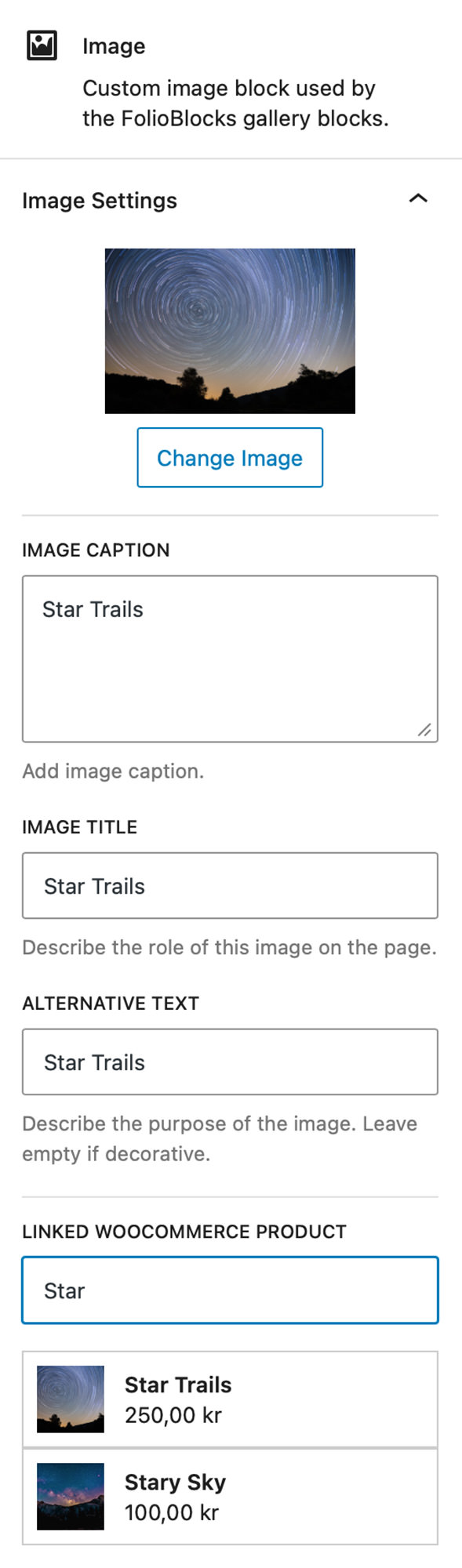
Linking your images to products is super simple, with Enable WooCommerce Integration turned on simply select one of the images in your gallery and look in it’s blocks settings.
You will see a new setting available, Linked WooCommerce Products, with an input field that allows you to search through the all of the WooCommerce Products on your site.
Simple search for your product and select it to link it with the image.
Override Default Add to Cart Behavior
Once you have linked your image to a WooCommerce product an additional select control gives you the option to override the gallery’s default Add to Cart behavior. Giving you the option to have the gallery default to adding the product to your cart, but this image defaulting to making the icon go to the product page.
Note: The settings for Linked WooCommerce Products only appear when Enable WooCommerce Integration is active on the parent gallery block.
Example Grid Gallery
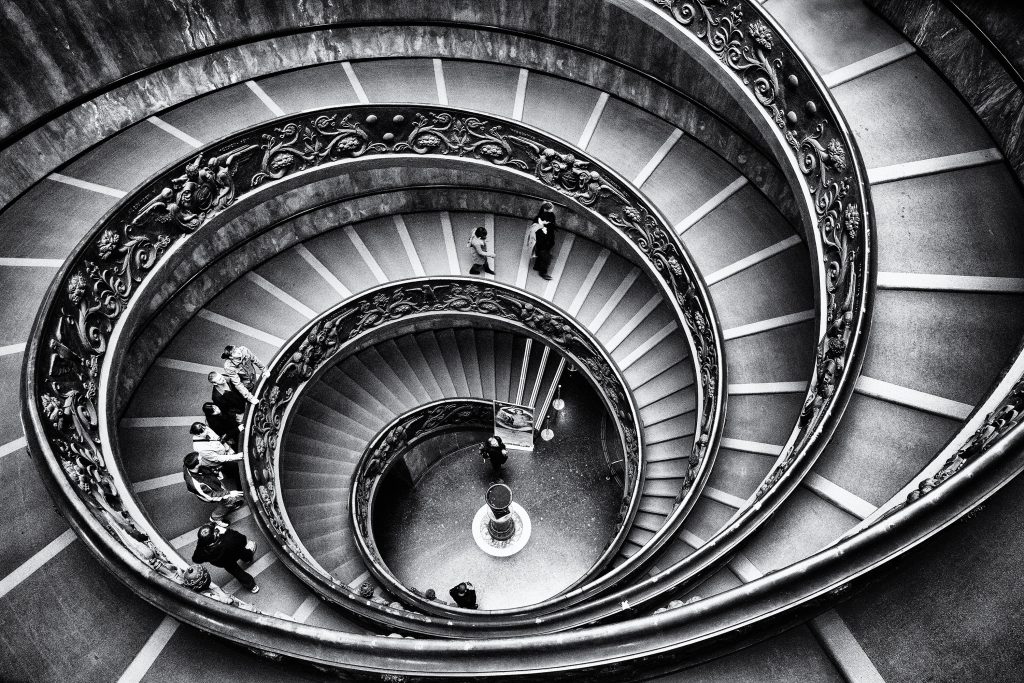
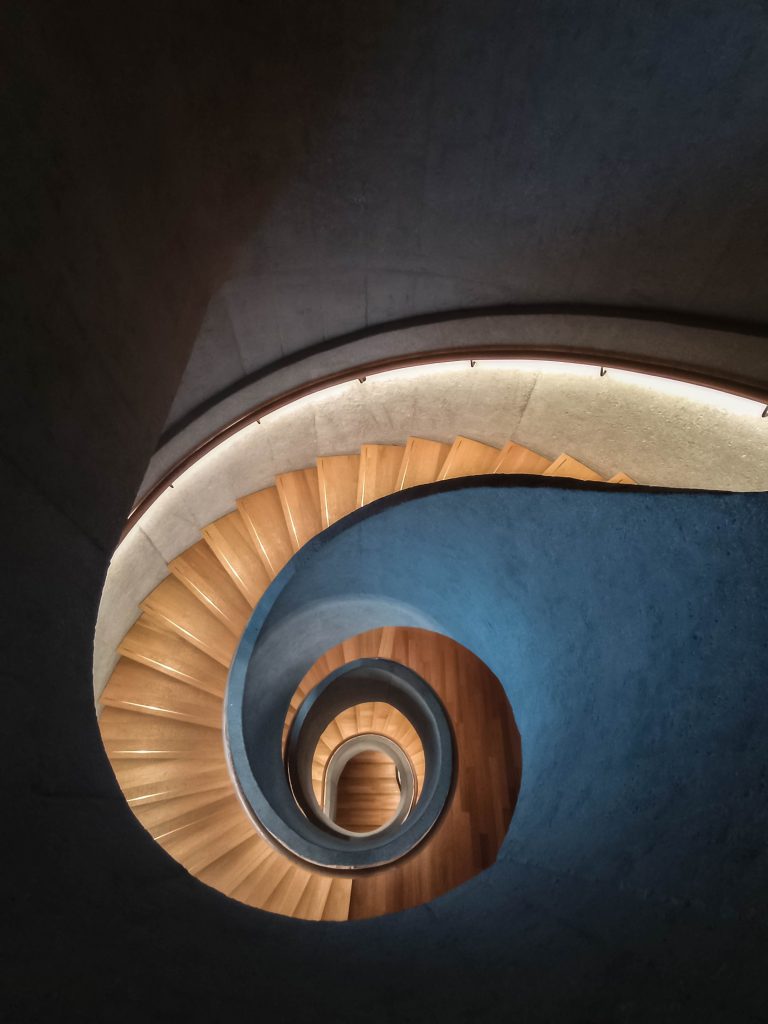
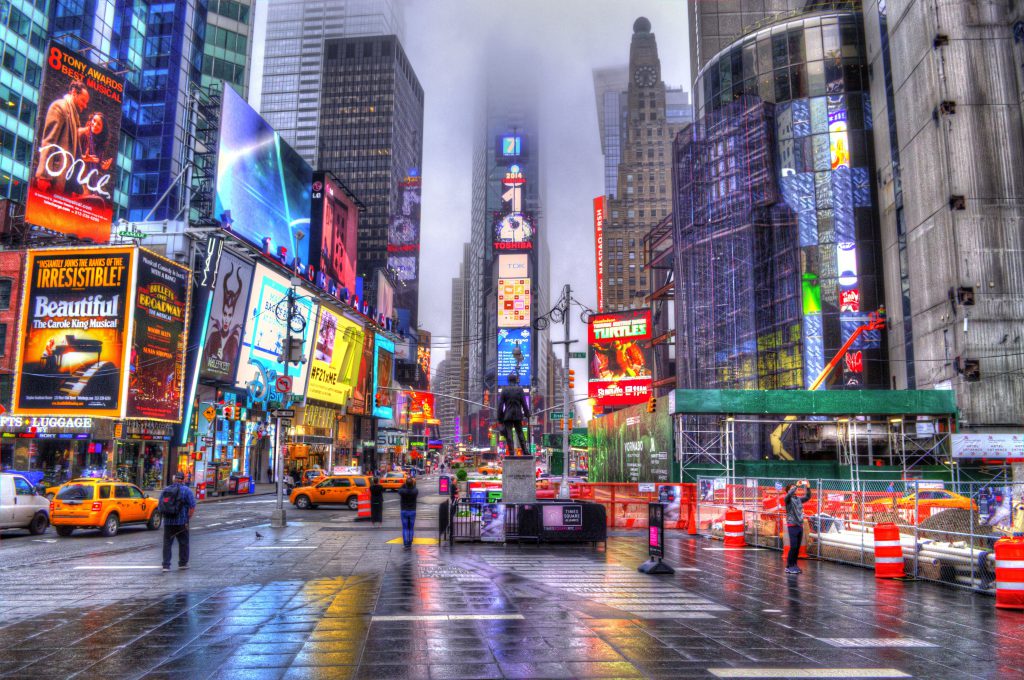
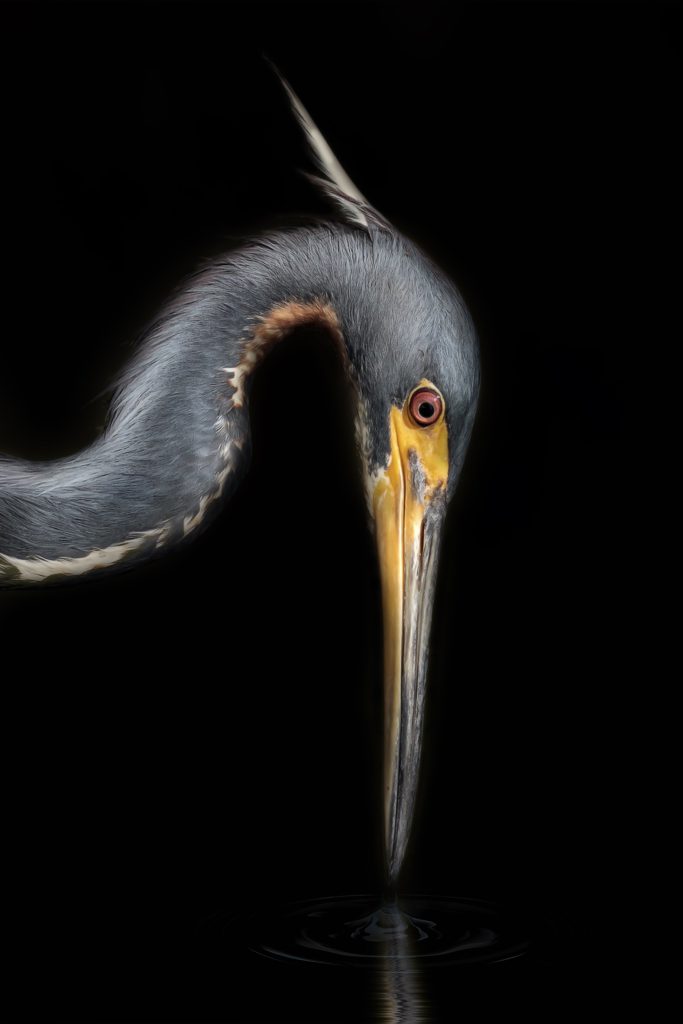
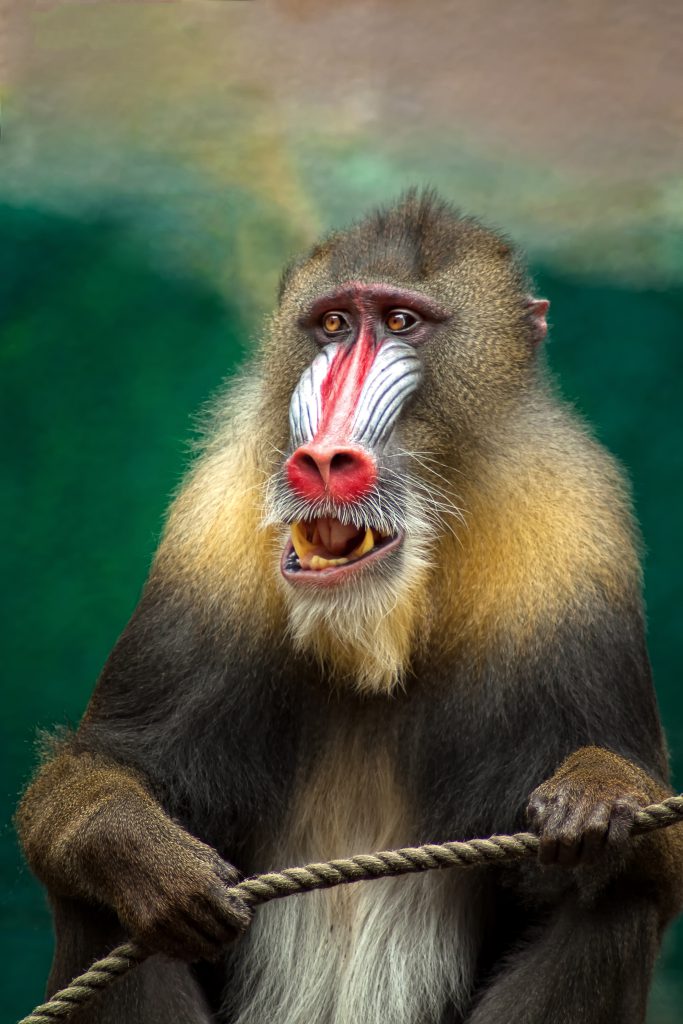
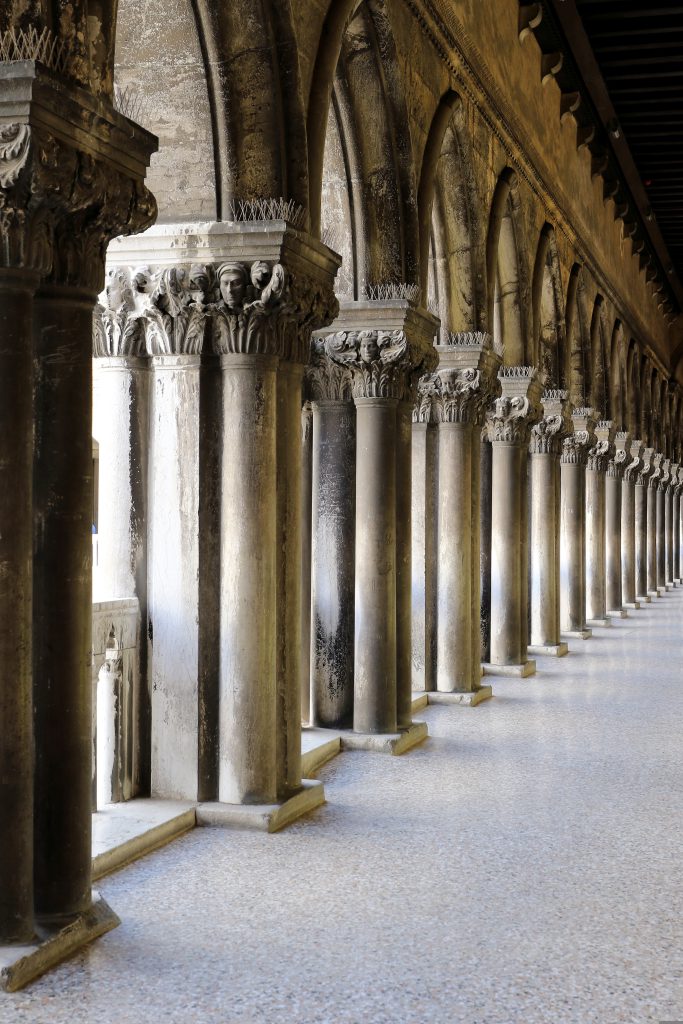
Below is an example of a Grid Gallery created with FolioBlocks:






















Common Questions
How many images can I add?
There are no limits on how many images you can add.
Can I reorder after adding images?
Yes — drag and drop directly in the List View panel.
Does it work with my theme?
For the best experience it is recommended to use a block based theme. However FolioBlocks does work with classic themes provided they support wp_block_styles and the block editor.
Does it work in WordPress 6.x and newer?
Absolutely. All FolioBlocks are built for the WordPress Block Editor (Gutenberg) and fully compatible with modern WordPress releases.
Get Started
Ready to create your first Grid gallery? Get FolioBlocks and start building modern galleries in the WordPress Block Editor today.