
Updated: July 27th, 2026 for FolioBlocks Version 1.4 running on WordPress 7.0 or higher
Note: This article focuses on the Professional (Pro) version of FolioBlocks. Some of the features described here may not be available in the free version.
A full-width background video can make a WordPress page feel more immersive, polished, and visually engaging. With the FolioBlocks Background Video Block, you can add a responsive video section directly inside the WordPress Block Editor without writing custom code or relying on a separate page builder.
This tutorial walks through how to create a full-width background video section, add overlay content, adjust the layout, fine-tune the video behavior, and style the section so it works across desktop, tablet, and mobile. It is ideal for homepage hero sections, portfolio introductions, campaign pages, service pages, venue showcases, and any page section where motion helps set the tone.
Table of Contents
What Is The Background Video Block?
The Background Video Block is a FolioBlocks block that lets you place video behind foreground content in the WordPress Block Editor. Instead of embedding a normal video player, it creates a section where the video acts as the visual background while text, buttons, headings, or other blocks can sit on top.
It is designed for atmospheric, brand, portfolio, and promotional sections where the video supports the message rather than becoming the main interactive element. You can use it for hero sections, page banners, call-to-action areas, creative portfolio intros, product moments, or location-based visuals. The block gives you controls for video source, overlay styling, responsive behavior, spacing, and content placement so the section can feel integrated with the rest of your site.
How to Add the Block
1. Insert the Block
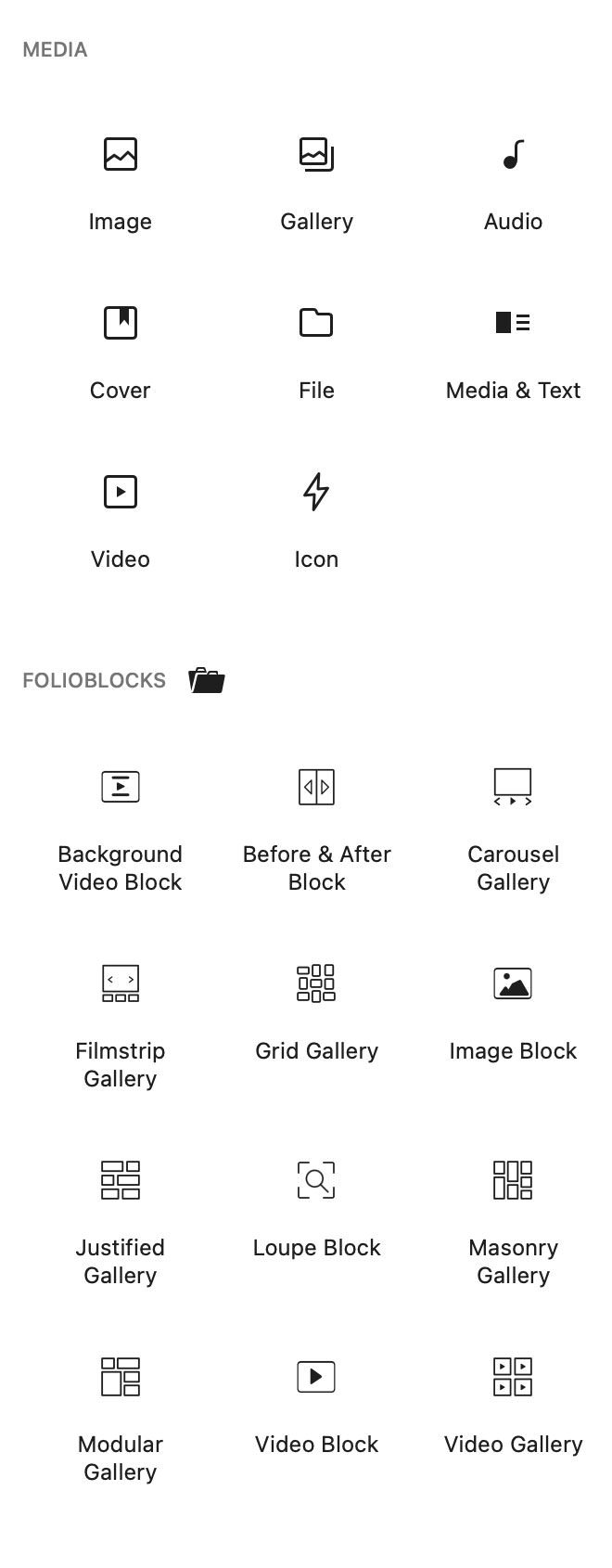
In the WordPress Block Editor, click the ➕ Add Block button and search for “Background Video Block.” You’ll find it under the FolioBlocks section.
Another option to add the block is to type / followed by the block name (Background Video Block) from inside the block editor.
2. Upload or Select Video
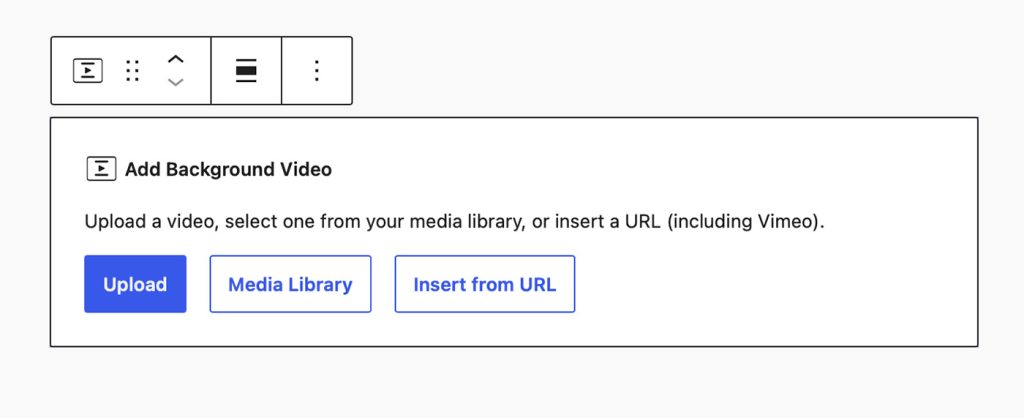
Once you have placed the block into the Editor a placeholder will invite you to choose videos from the Media Library, upload new ones, or insert them from a URL.
Note: The Background Video Block currently only supports videos from Vimeo or self-hosted files.
3. Adjust Block Width
Use the alignment controls in the block’s toolbar to select Content Width, Wide Width, or Full Width.
Building on the Background Video Block
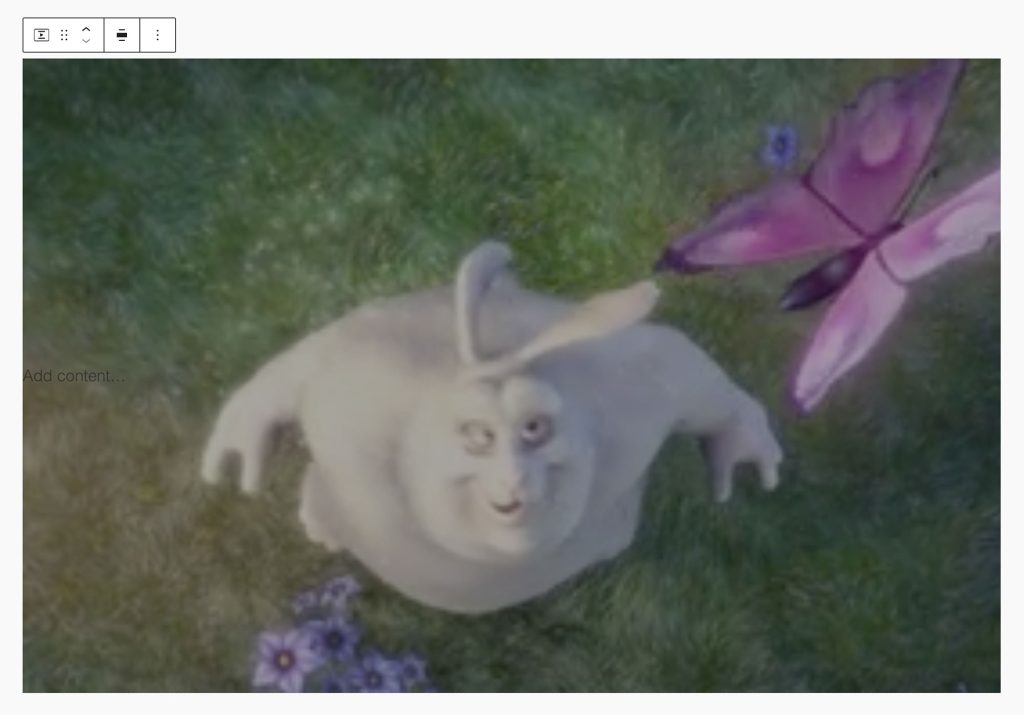
With the Background Video Block now loaded in the editor you can begin building on top of it.
The Background Video Block will create itself with a nested columns block inside of it. This nested columns block is set to stretch to match the height of the Background Video Block.
You can use vertical alignment controls on the Columns block to decided if your content will be placed on the Top, Middle, or Bottom or the Background Video Block.
You can then use any number of combinations of columns to decided where content will appear on the horizontal axis (Left, Middle, Right).
Inside of the Columns blocks you can use any block available in your WordPress installation. Allowing you to create any design you can imagine.
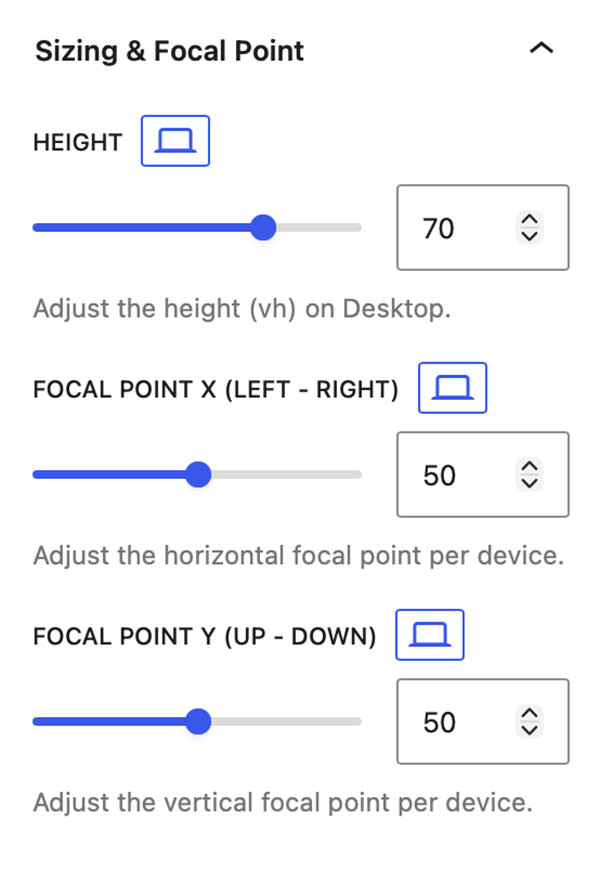
Size & Focal Point
Height
The Height control allows you to set the height of the Background Video Block in viewport height. With options to set different values on Desktop, Tablet, and Mobile.
Focal Point X (Left – Right)
The Focal Point X control allows you to shift the video along the X axis (Left & Right). With options to set different values on Desktop, Tablet, and Mobile.
Focal Point Y (Up – Down)
The Focal Point Y control allows you to shift the video along the Y axis (Left & Right). With options to set different values on Desktop, Tablet, and Mobile.
Video Settings
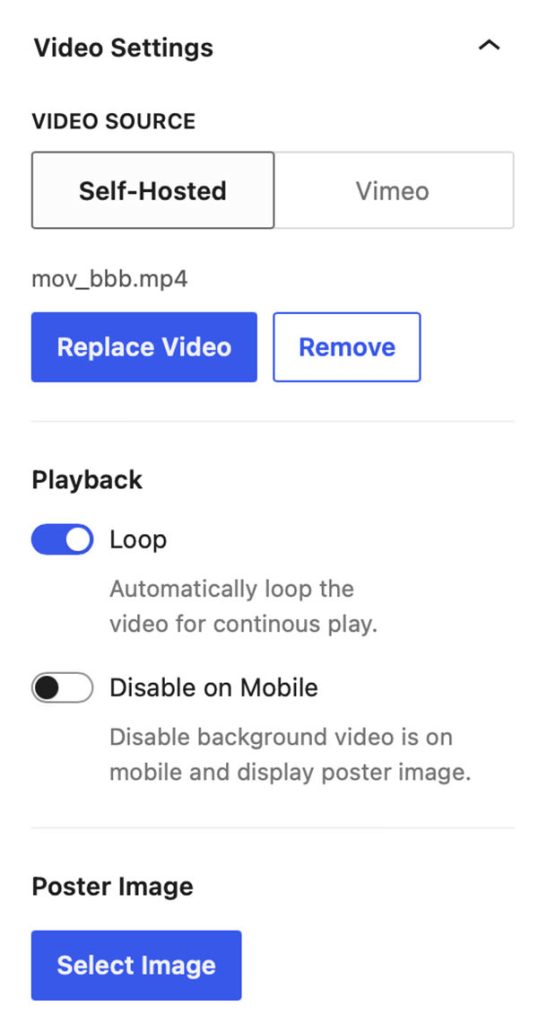
Video Source
In the Video Source settings you have an option to switch between using a self-hosted video file or a video hosted on Vimeo.
If you are using a self-hosted file there is an option to Replace Video or Remove.
Loop
The Loop setting allows you to automatically loop the video for continuous play.
Disable on Mobile
The Disable on Mobile setting allows you to disable the video on mobile and instead display a poster image.
Poster Image
The Poster Image setting allows you to set a poster image that is used before the video loads or when the video is disabled on mobile.
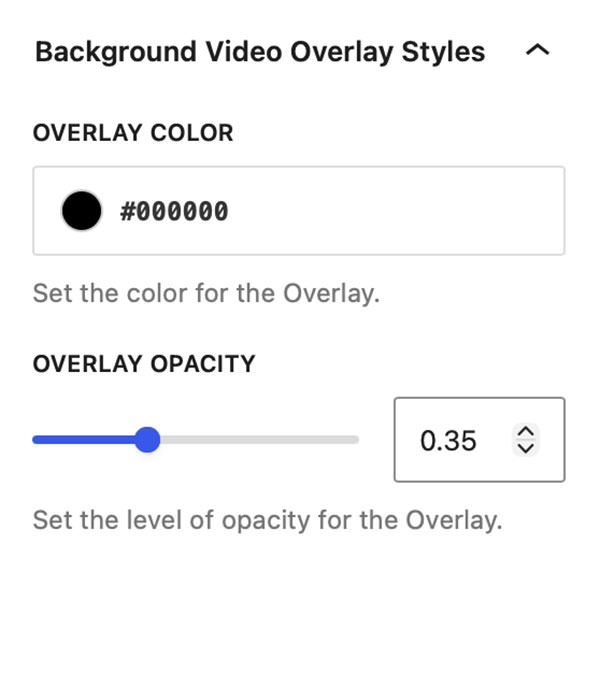
Background Video Overlay Styles
Overlay Color
The Overlay Color setting allows you to set the color of an overlay that is placed over your background video.
Overlay Opacity
The Overlay Opacity setting allows you to set the opacity level on that overlay.
These settings are designed to help make the content you place over your background video more legible.
Page/Post Settings
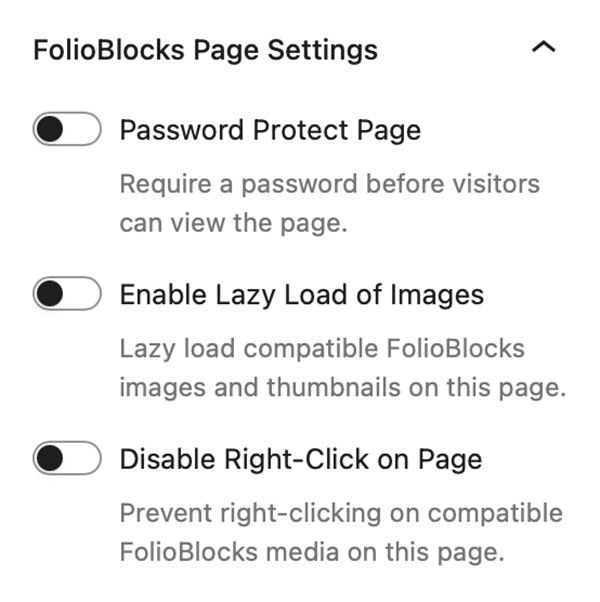
Starting with FolioBlocks 1.4, several controls that were previously located in the block’s Advanced settings have been moved to a dedicated FolioBlocks Page Settings panel in the Page/Post sidebar.
These features operate at the page level rather than the individual block level, so moving them out of the block settings creates a more intuitive editing experience and prevents the same feature from being enabled multiple times when a page contains several FolioBlocks blocks.
The FolioBlocks Page Settings panel is automatically added to the Page or Post sidebar whenever a FolioBlocks block is inserted into the WordPress editor. From this central location, you can configure settings that apply across the entire page, including the following features:
Password Protect Page
Requires a password before visitors can view the page.
Disable Right-Click on Page
Attempts to disable right-click to discourage casual image downloads.
Note: This makes it harder for casual users to save images, but it’s not foolproof — advanced users can still access media via the browser’s developer tools or view source.
Enable Lazy-Load of Images
When active, images load as the user scrolls, improving initial page load speed.
Example Background Video Section
Bellow is an example of the Background Video Block with a group block containing heading, separator, paragraph, and button blocks inside of it:
Background Video Block
With the Background Video Block you can add a video to play in the Background and build on top of it with blocks.
Frequently Asked Questions (FAQ)
Yes. The Background Video Block is well suited for full-width hero sections and page banners.
Background videos should usually be muted, especially when they autoplay.
Yes, but you should preview the section on mobile and adjust spacing or height as needed.
Yes. The block is designed so foreground content can sit on top of the video.
Large videos can affect performance, so use optimized video files and avoid unnecessarily long clips.
The Background Video Block requires WordPress 6.5 or higher. Some newer FolioBlocks features require WordPress 7.0 or higher, so for the best experience we recommend keeping WordPress updated to the latest version, especially when using modern block themes and newer editor features.
Get Started
Ready to build your first Background Video block? Download FolioBlocks for free or upgrade to Pro for advanced features like filtering, downloads, and WooCommerce integration.
Get FolioBlocks and start creating stunning, responsive galleries in the WordPress Block Editor today.